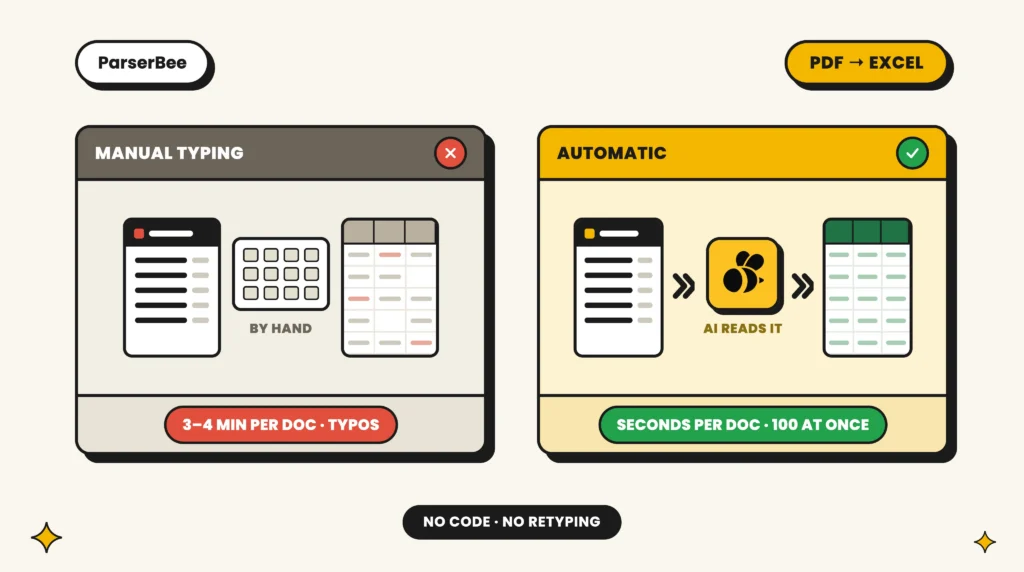
Retyping one 60-transaction bank statement into a spreadsheet means around 300 typed values and roughly 20 minutes of careful work, with a measured error rate of about 1 percent per entry across decades of human error research. Bank statement to Excel software removes that job entirely: statement in, transaction rows out.
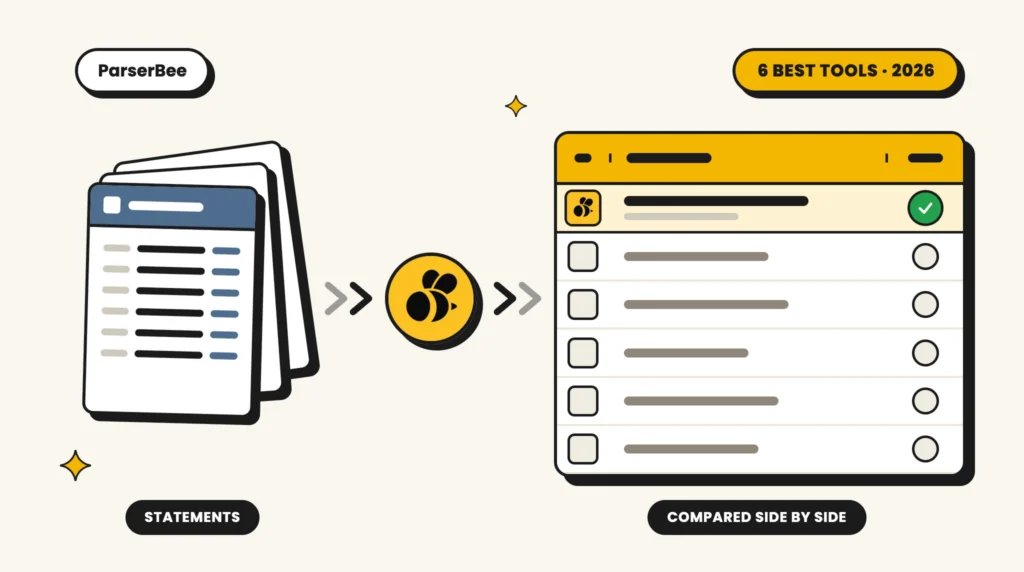
The market splits into three kinds of tool, and buying the wrong kind is the most common mistake. This comparison covers six options across all three, what each genuinely does well, and which one fits your situation.
A disclosure before we start: ParserBee is our product. It is in this list because it belongs here, and we have kept the comparison honest; several tools below are the better choice for specific situations, and we say so.
Test your own statement first
The free bank statement converter turns one statement into Excel rows in about a minute. No signup, and it reads scanned statements too.
Open the free converter → Or see how to convert a whole batch
The six tools:
- ParserBee: best for non-technical teams and mixed document types
- DocuClipper: best for accounting-format exports
- MoneyThumb: best for QuickBooks-first workflows
- Docparser: best for rule-based parsing at volume
- Nanonets: best for enterprise approval workflows
- Excel’s Get Data from PDF: best free option for one clean statement
How we evaluated these tools
Every tool on this list was assessed against the same four criteria, in the order they matter for real statement work:
- Scanned statement support. Client statements and older bank PDFs are often scans. Tools without AI reading fail on them completely.
- Structured rows, not text dumps. You need date, description, debit, credit and balance in separate columns, reliably, or the “conversion” just moves the manual work downstream.
- Batch capability. One statement a month is a non-problem. Twenty client statements a month is the actual use case, and per-file workflows collapse at that volume.
- Export formats. Excel and CSV at minimum. Direct Google Sheets or accounting-format exports (QBO, OFX) save a further step.
Quick comparison
| Tool | Best for | Scanned PDFs | Batch processing | Exports |
|---|---|---|---|---|
| ParserBee | Non-technical teams, mixed document types | Yes | Yes (100/batch) | CSV, PDF, Google Sheets |
| DocuClipper | Accountants converting to accounting formats | Yes | Yes | Excel, CSV, QBO + QuickBooks/Xero sync |
| MoneyThumb | QuickBooks-first conversions | Yes | Desktop, per file | QBO, QFX, QIF, OFX, CSV |
| Docparser | Rule-based parsing at volume | Yes | Yes | Excel, CSV, JSON, XML, Google Sheets |
| Nanonets | Enterprise workflows with approval steps | Yes | Yes | QuickBooks, Xero, SAP + other integrations |
| Excel’s Get Data from PDF | One clean digital statement, occasionally | No | No | Excel |
Pricing compared
What it costs to get started with each tool, as listed on the vendors’ own sites in September 2026. Prices change often, so confirm on the vendor’s site before you buy.
| Tool | Free option | Entry paid plan | Pricing model |
|---|---|---|---|
| ParserBee | Free converter (no signup) + 25 free pages | $29/month for 250 pages | Monthly plans by pages |
| DocuClipper | 14-day trial, 120 pages | $20/month for 60 pages ($14/month billed annually) | Monthly plans by pages |
| MoneyThumb | Not published | Priced per product | One-time licences |
| Docparser | 14-day trial | $39/month for 100 documents ($32.50/month billed annually) | Monthly plans by documents |
| Nanonets | $50 in free credits | Usage-based | Pay per workflow step, volume plans by quote |
| Excel’s Get Data from PDF | Included with Excel | None | Part of Microsoft 365 |
The six tools in detail
1. ParserBee
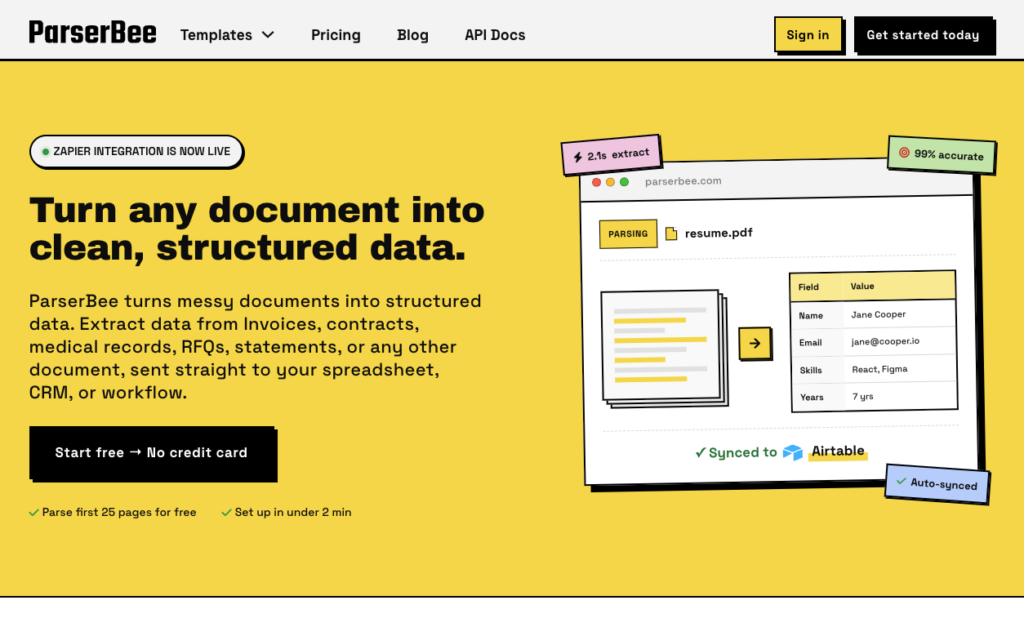
Best for: non-technical teams, and anyone whose documents go beyond statements
Price: free converter tool with no signup; free trial with 25 page credits and no credit card; paid plans on the pricing page
ParserBee is an AI document extraction platform built for people who do not code. For bank statements specifically: a ready-made bank statement template extracts every transaction as its own row (date, description, debit, credit, balance), and Data Lab processes up to 100 statements in one drag-and-drop batch, exporting to CSV, printable PDF or straight to a new Google Sheet.
What we like:
- Works on scans and phone photos as well as digital PDFs
- No per-bank setup: the AI reads any layout, so mixed banks run in one batch
- The same account handles invoices, receipts and 80+ other document types, so it does not become a single-purpose subscription
- The free tool means you can test your own bank’s statement before creating an account
What to watch:
- No direct QBO/OFX accounting-format export today, so QuickBooks imports go via CSV
- Encrypted PDFs must be unlocked before upload
Try ParserBee on your own statements
Test one statement in the free converter, no signup. When it reads your bank’s layout, batch the rest: up to 100 statements at a time, with 25 free pages and no credit card.
2. DocuClipper
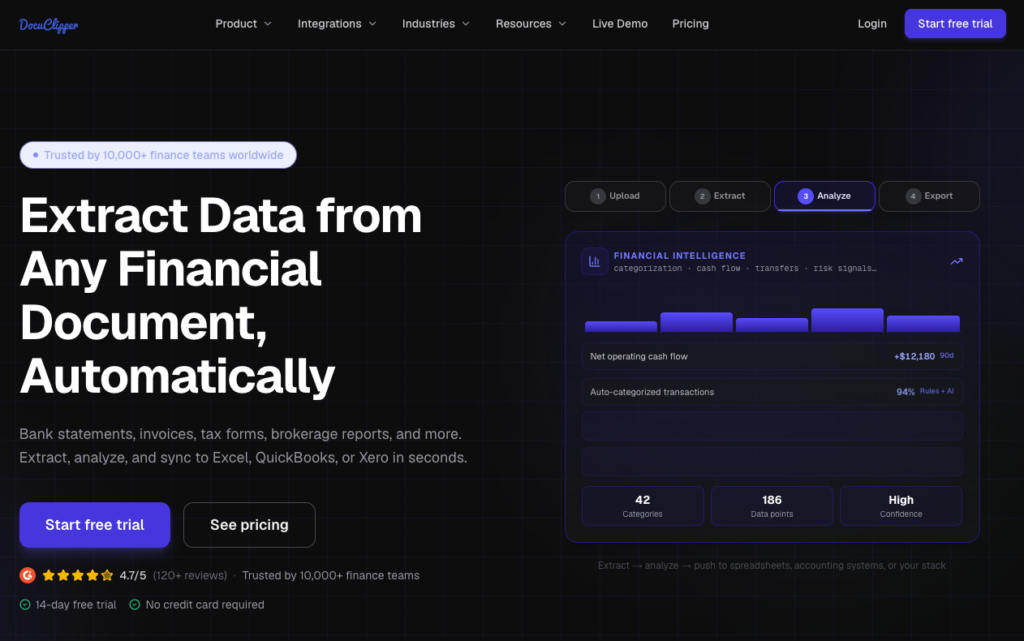
Best for: accountants whose destination is QuickBooks or Xero
Price: from $20/month for 60 pages ($14/month billed annually); 14-day free trial with 120 pages, no credit card
DocuClipper is a bank statement converter aimed squarely at accountants and bookkeepers. Its distinguishing strength is the accounting-side finish: QBO export plus direct sync to QuickBooks and Xero, which removes the CSV-import step entirely.
What we like:
- Purpose-built for financial documents, with QBO export and QuickBooks/Xero sync
- OCR handles scanned as well as digital statements, with batch processing
- Automatic reconciliation validates each extraction against the statement’s closing balance, which is exactly the check we recommend doing anyway
What to watch:
- Focused on financial documents (statements, invoices, receipts, tax forms); resumes, contracts and general documents are out of scope
- Page-based monthly caps, and unused pages do not roll over
3. MoneyThumb
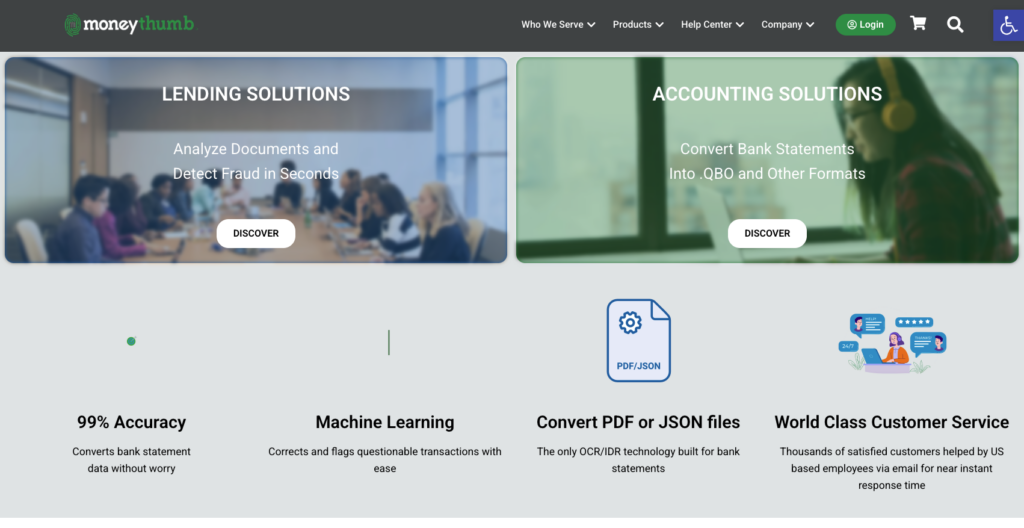
Best for: bookkeepers whose entire world is QuickBooks and who prefer owning software outright
Price: one-time licences (a 50-day Express option and lifetime Pro tiers); per-product prices on their site
MoneyThumb sells desktop converters (2qbo, 2qfx and similar) that turn statement PDFs into QuickBooks-native files, alongside QFX, QIF, OFX and CSV outputs. For bookkeepers whose entire world is QuickBooks, the direct QBO output is the appeal.
What we like:
- QuickBooks-native .qbo output, plus the widest accounting-format range on this list (QFX, QIF, OFX, CSV)
- One-time lifetime licences rather than a subscription, with volume discounts for firms
- OCR built specifically for bank statements (MoneyThumb claims 99% accuracy on conversions)
What to watch:
- Desktop software, with some editions Windows-only; not built for teams or the browser
- Licence prices are listed per product rather than on one pricing page, so comparing costs takes some clicking
4. Docparser
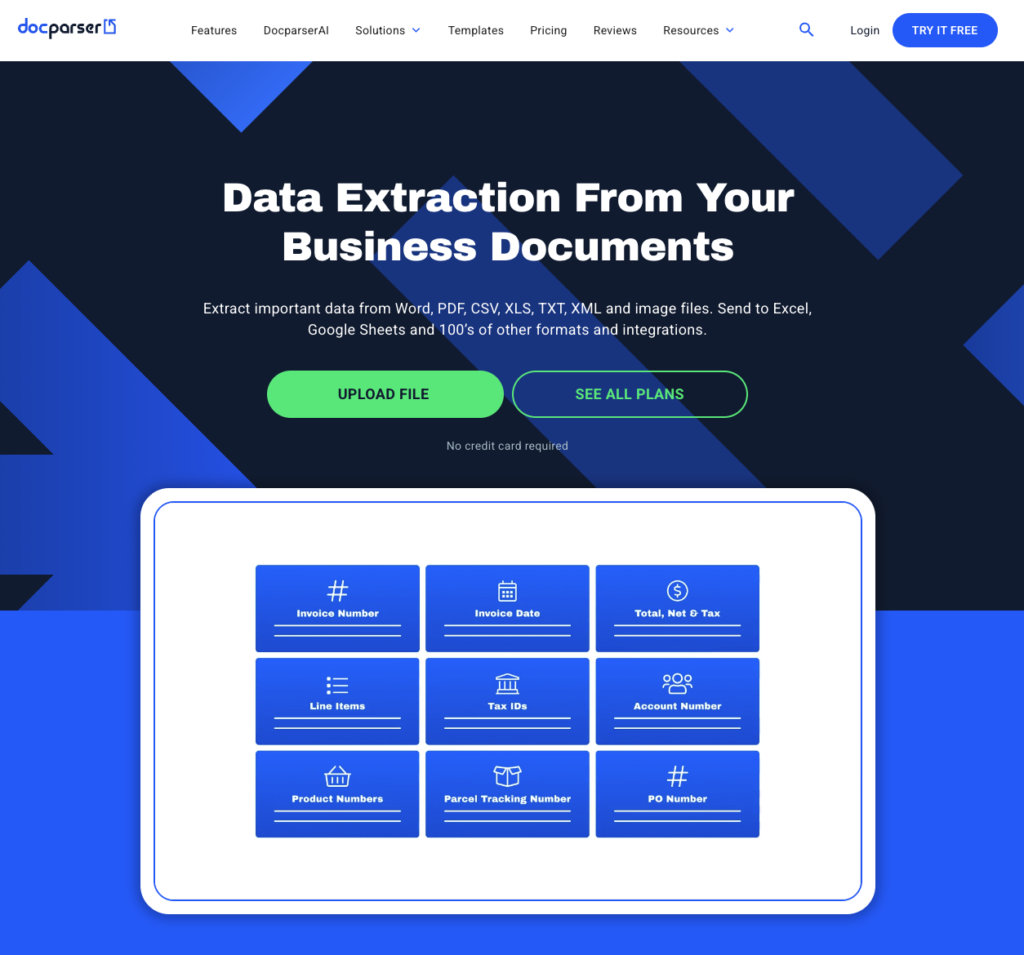
Best for: one bank, high volume, and someone happy to configure rules
Price: from $32.50/month billed annually ($39 monthly) for 100 documents/month; 14-day free trial, no credit card
Docparser extracts data using parsing rules you configure per document layout. Once tuned for a specific bank’s statement format, it is fast and consistent at volume.
What we like:
- Predictable results once rules are configured
- Mature integrations: Google Sheets, Excel, CSV, JSON and XML exports, plus hundreds of app connections
- Handles PDF, Word and image files
What to watch:
- Rules are layout-based, so statements from a new bank typically mean new setup, and a done-for-you layout costs $149 as a paid add-on
- The rule builder is more technical than a non-technical bookkeeper wants
5. Nanonets
Best for: larger finance teams needing approval workflows around extraction
Price: $50 in free credits to start (no card); then usage-based pricing per workflow step, with volume plans by quote
Nanonets is an AI document processing platform aimed further upmarket, with workflow features (approval gates, human-in-the-loop review, validation rules) around the extraction itself.
What we like:
- Strong AI extraction, with configurable approval gates and low-confidence results routed to human review
- Deep integrations for larger teams: SAP, QuickBooks, Xero, Sage, Salesforce, Snowflake and more
What to watch:
- Enterprise orientation shows in setup and pricing: their own pricing example works out to roughly $2 per invoice for a typical multi-step workflow
- Heavier than a small practice needs for statement conversion alone
6. Excel’s built-in “Get Data from PDF”
Best for: a single clean digital statement, occasionally
Price: free (included with Excel)
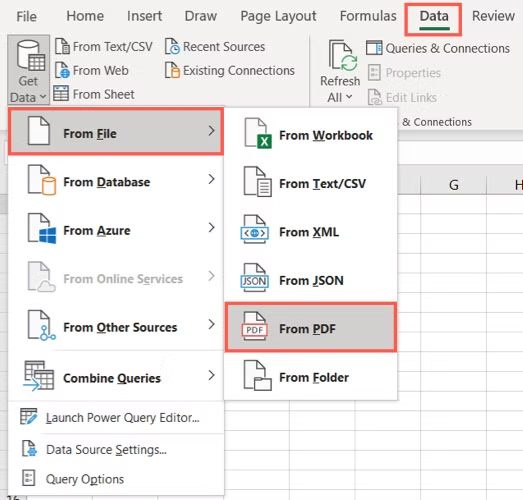
Excel can import tables from PDFs directly (Data tab, Get Data, From File, From PDF). For a single digitally-generated statement with a simple table, it is free and already installed.
What we like:
- Free, with no new tool to learn
- Fine for occasional one-off imports
What to watch:
- Fails completely on scanned statements
- Multi-page tables arrive fragmented, and multi-line descriptions shift rows out of alignment. It is the tool you outgrow the month your volume becomes real.
Which should you choose?
- You process mixed documents (statements, invoices, receipts) and nobody on the team codes: ParserBee.
- You are an accountant whose only job is statements into QuickBooks: DocuClipper (browser, subscription, Xero sync too) or MoneyThumb (desktop, one-time licence).
- You have one bank, high volume, and someone happy to configure parsing rules: Docparser.
- You are a large finance team needing approval workflows: Nanonets.
- You have one clean digital statement a month: Excel’s built-in import, until it breaks.
Frequently asked questions
What is the best free way to convert a bank statement to Excel?
For one statement, a free online bank statement converter is the fastest route; ParserBee’s free tool needs no signup and handles scans. Excel’s built-in PDF import is also free but fails on scanned statements and multi-page tables.
Can these tools handle scanned bank statements?
Yes, all five paid tools on this list advertise scanned statement support: ParserBee and Nanonets through AI reading, DocuClipper and MoneyThumb through OCR built for financial documents, and Docparser through image parsing. Excel’s built-in import is the exception: it cannot read scans at all, because a scan contains a picture of the table, not the table.
How accurate is automated statement conversion?
High on printed statements, and unlike manual entry it does not degrade with fatigue. Whatever tool you use, verify before financial reporting: check the extracted closing balance against the printed one on each statement. If those match, the rows between them almost certainly reconcile.
Do any of these connect to live bank accounts?
No, and that is by design. These tools process statement files. Live bank connections (Plaid, Yodlee, TrueLayer) are a different product category built for fintech developers, not for teams who receive statements as PDFs.
The bottom line
Manual statement transcription is a solved problem in 2026; the only real decision is which category of tool fits your workflow.
Start where the risk is zero
If your documents are varied and your team is non-technical, convert one statement free, check the closing balance against the printed one, and then batch the rest.
Keep reading: