
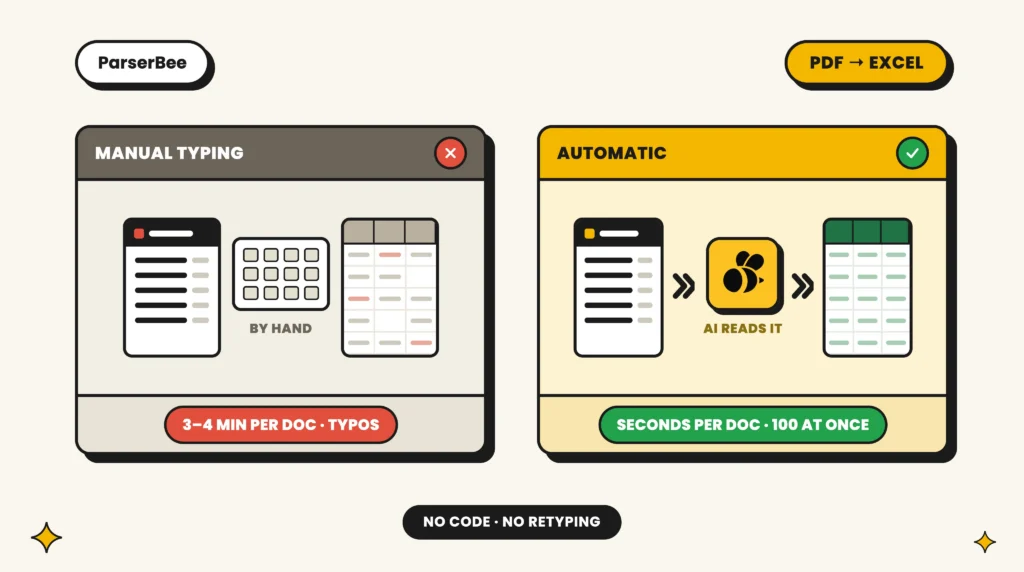
Manual data entry carries a measured error rate of roughly 1 percent per entry, a benchmark that has held across decades of human error research. Workers also lose a large share of every week to repetitive tasks software could already do: more than 40 percent of people spend at least a quarter of their working week on manual, repetitive work, according to Smartsheet’s Automation in the Workplace report. For finance and operations teams, much of that time has one shape: a PDF on one half of the screen, a spreadsheet on the other, and someone typing between them.
This guide shows you how to extract data from PDF to Excel without retyping a line, and it needs no developer, no IT ticket, and no code.
TL;DR: PDFs resist copy-paste because they are built for reading, not for data. Of the four common fixes, three rearrange the typing and one removes it. By the end of this guide you will know which is which, and how to set up an automatic PDF to Excel workflow in about twenty minutes using a tool your least technical colleague can run.
The real cost of manual data entry
Name the problem precisely before shopping for a fix. Typing PDF data into spreadsheets hurts in three ways, and only one of them shows up on a timesheet.
- It is slow. At three to four minutes per document, a hundred documents a month is five to seven hours of typing. Across a year that is more than a full working week spent copying information already printed on a page.
- It causes errors. A 1,450 becomes a 1,540. A date lands in the wrong column. Each mistake is cheap to make and expensive to find, usually at month end when the numbers refuse to reconcile. The typing costs you hours; the errors cost you an afternoon of hunting.
- It scales with headcount, not with technology. Double your volume and you need double the hours. Nothing about typing gets more efficient with practice, so the work grows in a straight line forever.
Why extracting data from PDF to Excel is harder than it sounds
Getting data out of a PDF is genuinely difficult, and the reason is structural rather than a gap in your spreadsheet skills. A PDF describes where ink sits on a page, not what any of that ink means.
- PDFs are presentation formats, not data formats. A PDF is designed to look identical on every screen and printer. It is built for human eyes, not for software that needs to know which number is the total and which is the tax.
- Every supplier’s PDF looks different. One vendor puts the total in the top right. Another buries it on page two and calls it “Balance Due”. No standard layout means no fixed place for a tool to look.
- Scanned PDFs contain no text at all. A scan or a phone photo is a picture. You cannot select the text because, to the computer, there is no text. There is only an image of ink.
- Excel’s built-in import handles only the simple cases. Get Data from PDF works on clean, consistent, digitally created tables. Real business documents, with mixed layouts, logos, footers and scans, usually come out scrambled or empty.
This is why the answer is never a cleverer formula. A formula reads a cell that already exists, and your bottleneck is that the data is not in a cell yet. You need something that reads a document for meaning, the way a person does.
The four ways to get data from a PDF into Excel
Here is an honest comparison of your options, including the one you are using today.
Option A: Manual typing. No setup, works on anything, costs two or more hours every week permanently. It is the only option that gets worse the more you use it, because error rates climb as volume grows and attention fades.
Option B: Excel’s built-in PDF import. Free, already installed, and worth trying if your PDFs are simple digital tables that always arrive in the same layout. It fails on scans, on varied supplier formats, and on anything that is not a clean table, which describes most business paperwork.
Option C: Copy-paste from a PDF viewer. Faster than typing, then slower than it looks: the pasted text arrives as an unstructured block and you spend the saved time splitting it back into columns. It does nothing for scans.
Option D: AI document data extraction. Describe the fields you want once, in plain English. From then on every document is read automatically and the data comes back sorted into those fields, ready for Excel. Digital PDFs, scans and phone photos all work, and every supplier using a different layout stops mattering.
| Manual typing | Excel PDF import | Copy-paste | ParserBee | |
|---|---|---|---|---|
| Works on scanned PDFs and photos | Yes, slowly | No | No | Yes |
| Handles different supplier layouts | Yes, slowly | No | Partially | Yes |
| Returns labelled spreadsheet columns | Yes | Sometimes | No | Yes |
| Time per document after setup | 3 to 4 min | Varies | 1 to 2 min | Seconds |
| Effort for a backlog of 100 files | Days | Hours of fixing | Hours of fixing | Minutes |
| Requires a developer | No | No | No | No |
If your documents are varied, scanned, or arriving in any volume, Option D is the only one that removes the work rather than moving it. Try it on your own document free while you read the rest of this guide. The trial includes 25 credits and no credit card.
How to extract data from PDF to Excel automatically, without code
ParserBee is data extraction software built for people who do not write code and have no intention of starting. The whole workflow is point and click.
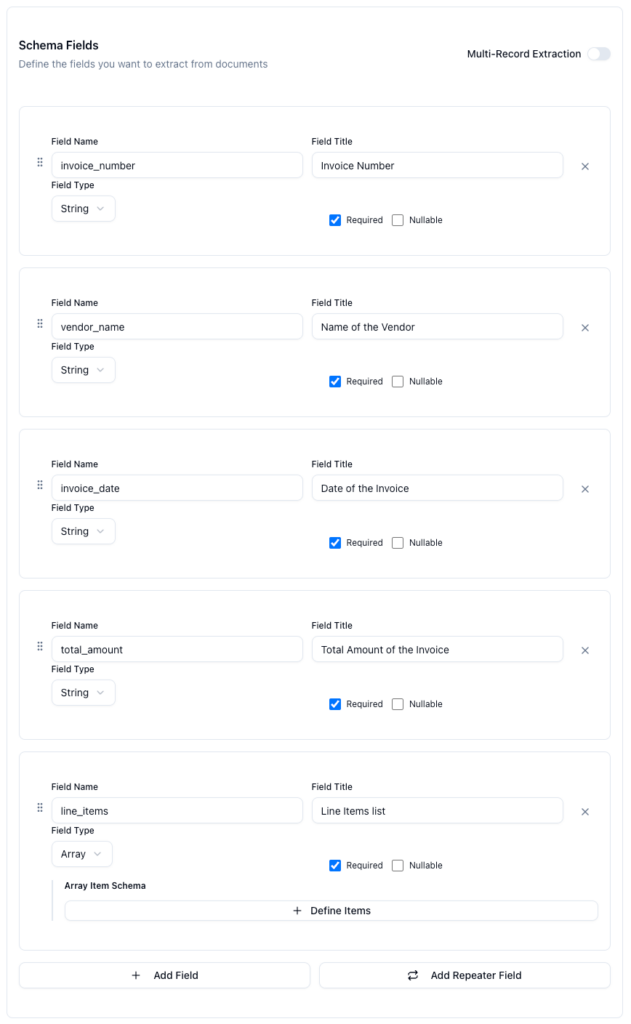
- Create a Parser Template. A Parser Template is your list of “things I want from every document”. Give each field a name and a short plain-English description, such as “The invoice number printed at the top of the document”.
- Send it your documents. Upload one at a time, or drop a whole batch into Data Lab and process up to 100 files in a single run.
- Get organised data back. Each document returns as labelled fields: supplier in one column, date in another, total in a third. Download a CSV for Excel, send results to a new Google Sheet, or connect your other tools through Zapier.
- It reads far more than PDFs. Scans, phone photos including iPhone HEIC files, PowerPoint, Excel, CSV, plain text and saved emails are all read the same way, up to 50 MB each. Save DOCX files as PDF first, as Word’s newer format is not supported.
Here is what a parsed invoice looks like coming out, as plain labelled data rather than anything technical:
| Field | Extracted value |
|---|---|
| Supplier name | Brightway Office Supplies Ltd |
| Invoice number | INV-2026-0481 |
| Invoice date | 03/06/2026 |
| Due date | 03/07/2026 |
| Subtotal | 1,240.00 |
| Total due | 1,488.00 |
Pro Tip: Do not build your first Parser Template from a blank page. The Template Library holds 83 ready-made templates across 16 industries, covering invoices, receipts, resumes, statements and more. Open the closest match, adjust the field descriptions, and save. Faster still, upload one sample document and let our AI build the whole Parser Template for you in about twenty seconds. Every field stays editable either way.
Setting it up: five steps, no IT ticket required
Step 1: Sign up free at parserbee.com. The trial includes 25 credits and needs no credit card, so you can prove the value on your own documents before paying anything. One credit covers one page.
Step 2: Create a Parser Template and name your fields. Add a field for every detail you want in your spreadsheet: supplier, document number, date, total. Write a short description for each. The clearer the description, the more accurate the extraction.
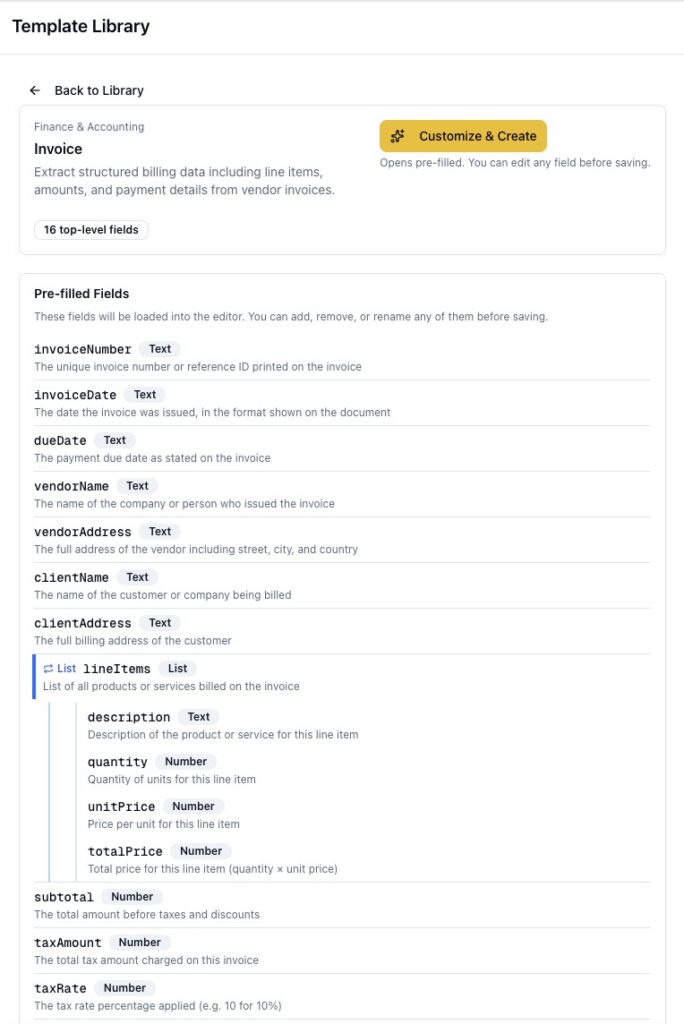
Step 3: Test with one of your actual documents. Upload a real PDF from your inbox, not a tidy sample. Check every field against the original, and if one comes back wrong, sharpen its description and test again. Two or three rounds is normal for a first template, and you will not need them again.
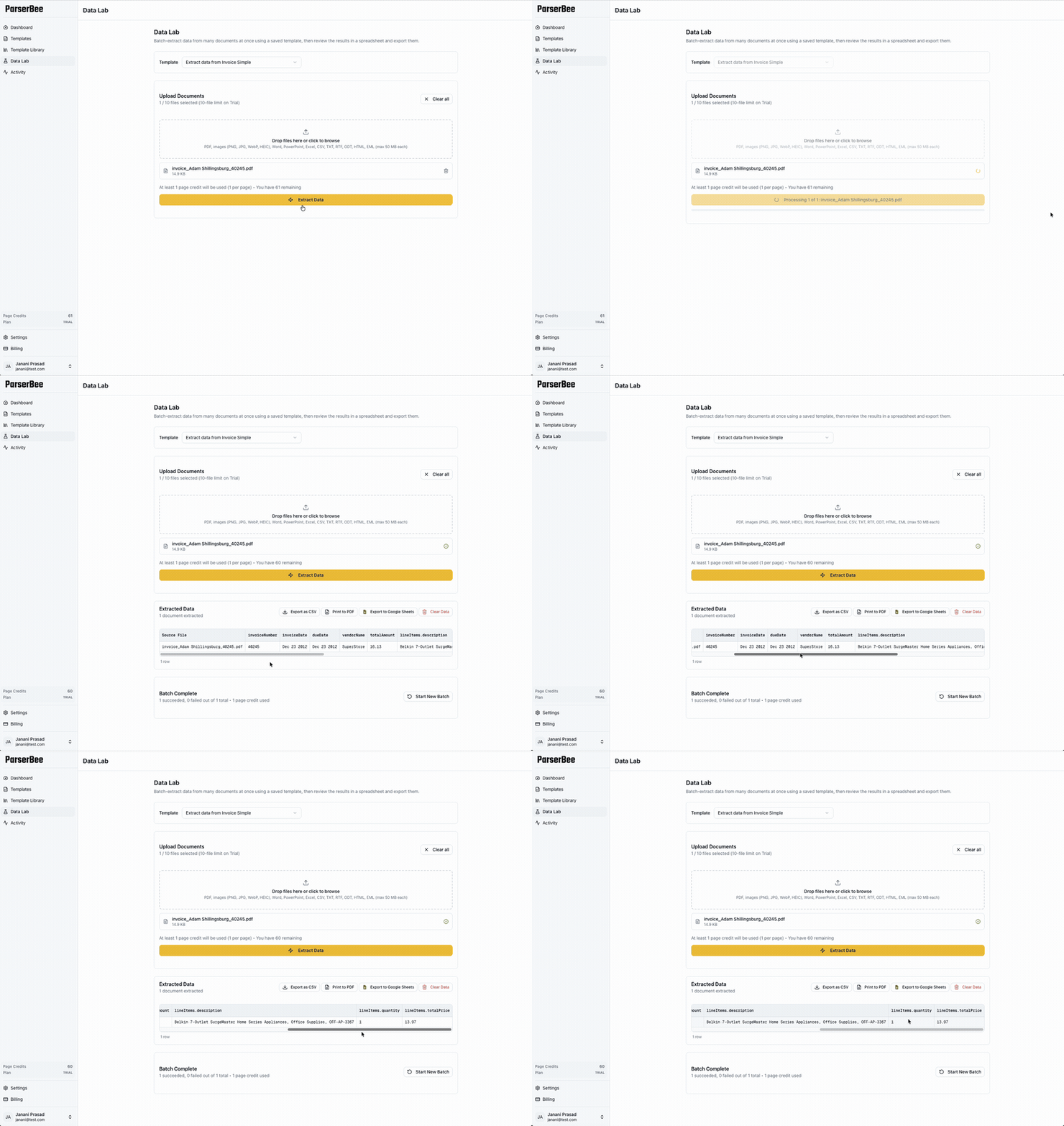
Step 4: Get the data into your spreadsheet. Three routes, all point and click. Download a CSV and open it in Excel. Send results to a new Google Sheet with the built-in export, connecting your Google account once under Settings, Integrations. Or connect ParserBee through Zapier so each new document becomes a new row on its own. Zapier asks for an API key, which is simply a secure password that lets the two tools talk to each other: copy it from your ParserBee settings and paste it in once.
Step 5: Run it on your backlog. That folder of unprocessed PDFs is now a five-minute job. Drop the batch into Data Lab, watch each file process with a live progress bar, review the combined results in one table, and export everything as a single file. An afternoon of typing becomes a coffee break of reviewing.
Ready to clear that folder? Start extracting free with 25 credits and no credit card.
Who this works for
The common thread across these four desks is documents arriving faster than anyone can type them.
- Finance teams processing supplier invoices. Before: Monday morning goes on retyping invoice details into the payables sheet. After: a batch becomes a spreadsheet in minutes and the admin reviews rather than types. Start from the invoice template.
- HR teams handling resumes. Before: every applicant’s name, email and experience is copied into a tracking sheet by hand. After: each resume becomes a candidate row, and shortlisting starts the day applications arrive. The resume template covers the standard fields.
- Operations teams digitising field forms. Before: paper inspection forms pile up until someone types a week of checklists into Excel. After: staff photograph the forms on their phones and the data lands in the tracker within minutes.
- Small business owners managing receipts. Before: tax season means a weekend reconstructing a year of expenses from a shoebox. After: receipts are photographed as they happen and the expense log fills itself in. The receipt template is ready to use.
What ParserBee cannot do
An honest tool description beats an oversold one. The limits worth knowing before you commit:
- Password-protected PDFs cannot be processed. Remove the password first using your PDF viewer’s save-a-copy option, or request an unprotected version.
- Very complex multi-page forms may need refinement. Most templates work on the first or second attempt. Unusually dense documents take a few rounds of tuning.
- It is the data extraction layer, not a full business system. ParserBee gets clean data out of documents and into your tools. It does not replace your accounting package, your HR system, or the judgment that acts on the numbers.
Frequently asked questions
Does this work with scanned or photographed documents?
Yes. Scans and phone photos, including iPhone HEIC images, are read as reliably as digital PDFs, because ParserBee’s AI reads the page rather than hunting for a hidden text layer. This is the exact case where Excel’s built-in import and copy-paste fail completely.
Do I need Zapier to use ParserBee?
No. Upload documents in your browser, process a batch in Data Lab, then download a CSV for Excel or send results to Google Sheets with the built-in export. Zapier only matters if you want documents flowing in and out with nobody clicking anything.
How accurate is the extraction?
Accuracy is high on printed documents and improves as your field descriptions get clearer. Unlike manual entry, it does not degrade at four in the afternoon. Use the habit you would use with a new starter: check the first batch closely, sharpen anything that came back wrong, then trust the process and spot-check.
What happens when a supplier changes their document format?
Usually nothing. ParserBee reads documents by meaning rather than by position, so a supplier redesigning their invoice does not break your Parser Template. That is the practical difference between AI data entry and older rule-based tools, which need a new rule per layout and fail quietly when one changes.
Stop typing what a machine can already read
Manual data entry is a people problem being solved by technology that already exists. The typing, the transposed digits and the month-end hunting are not the cost of doing business. They are the cost of not having spent twenty minutes on setup.
You now know why PDFs resist every quick fix, which of the four approaches removes the work, and how to extract data from PDF to Excel automatically instead of by hand. Data entry automation is no longer a project that needs a developer; it is an afternoon’s setup that pays back on the first batch.
The next step takes less time than processing tomorrow’s documents by hand. Start your free ParserBee trial, with 25 credits and no credit card, and run one real document through it today.
Keep reading
Table of Contents
The Best Invoice Automation Software for Small Businesses in 2026
data extraction, Invoices
10 Best Invoice OCR Software in 2026 (Tested on Real Invoices)
Comparisons, data extraction, Invoices, No Code
Bank Statement to Excel Software: The 6 Best Tools in 2026
Bank Statements, Comparisons, No Code