
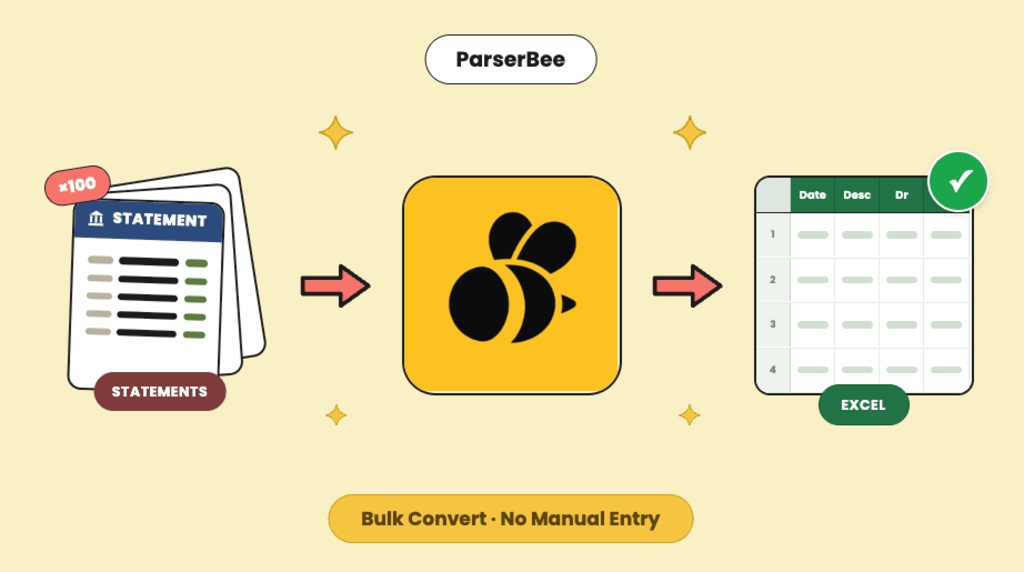
A single 60-transaction bank statement means around 300 typed values once you count the date, description, debit, credit, and balance on every line: roughly 20 minutes of careful typing per statement. Manual data entry also carries an error rate of about 1 percent per entry, a benchmark that has held across decades of human error research. On a statement, one wrong digit is not a typo; it is a reconciliation that will not balance.
This problem lands on the same three desks every month. Accountants and bookkeepers receive client statements as PDFs. Business owners download their own statements to do the books. Loan processors request three months of statements from every applicant and need the transactions in a spreadsheet before any analysis can start.
This guide shows you how to convert bank statements to Excel in bulk, without retyping a single line.
TL;DR: By the end of this guide you will be able to upload a batch of bank statements (up to 100 files at once), have every transaction extracted as a clean spreadsheet row, and export the lot to Excel, CSV, or Google Sheets. Setup takes minutes, works on scans and phone photos as well as digital PDFs, and needs no code.
Want to try it right now? The free bank statement converter runs in your browser, no signup, and works on scanned statements and photos.
Why PDF bank statements resist copy-paste and Excel import
PDF bank statements resist copy-paste and Excel’s built-in import because a statement is laid out for reading, not for data. Rows split across pages, descriptions wrap over multiple lines, and every bank designs its own layout, so tools that rely on fixed positions produce scrambled columns or nothing at all.
The failure modes are consistent whichever bank you deal with:
- Tables break across pages. A transaction list that runs over three pages arrives as three fragments, usually with repeated headers pasted into the middle of your data.
- Descriptions wrap onto multiple lines. “DIRECT DEBIT REF 44921 BRIGHTWAY OFFICE SUPPLIES LTD” becomes two half-rows, and every row below it shifts out of alignment.
- Running balance columns confuse imports. Excel cannot tell a debit from a credit from a balance; they are all just numbers in nearby columns.
- Scanned and photographed statements contain no text at all. To a computer, a scan is a picture of ink. Copy-paste has nothing to copy.
- Every bank uses a different layout. A fix you build for one bank’s format breaks the moment a client sends a statement from another.
Here is how the common approaches compare in practice:
| Manual entry | Excel “Get Data from PDF” | Generic OCR | AI template extraction | |
|---|---|---|---|---|
| Works on scans and photos | Yes, slowly | No | Partially | Yes |
| Keeps each transaction as one row | Yes | Rarely | No | Yes |
| Handles any bank’s layout | Yes, slowly | No | No | Yes |
| Outputs labelled columns | Yes | Sometimes | No | Yes |
| Effort for 50 statements | Days | Hours of fixing | Hours of fixing | Minutes |
What it means to extract transactions from a bank statement PDF
To extract transactions from a bank statement PDF is to turn each line of the statement into a structured spreadsheet row: date in one column, description in another, then debit, credit, and balance. The document goes in as a file; the data comes out ready to sort, filter, and total.
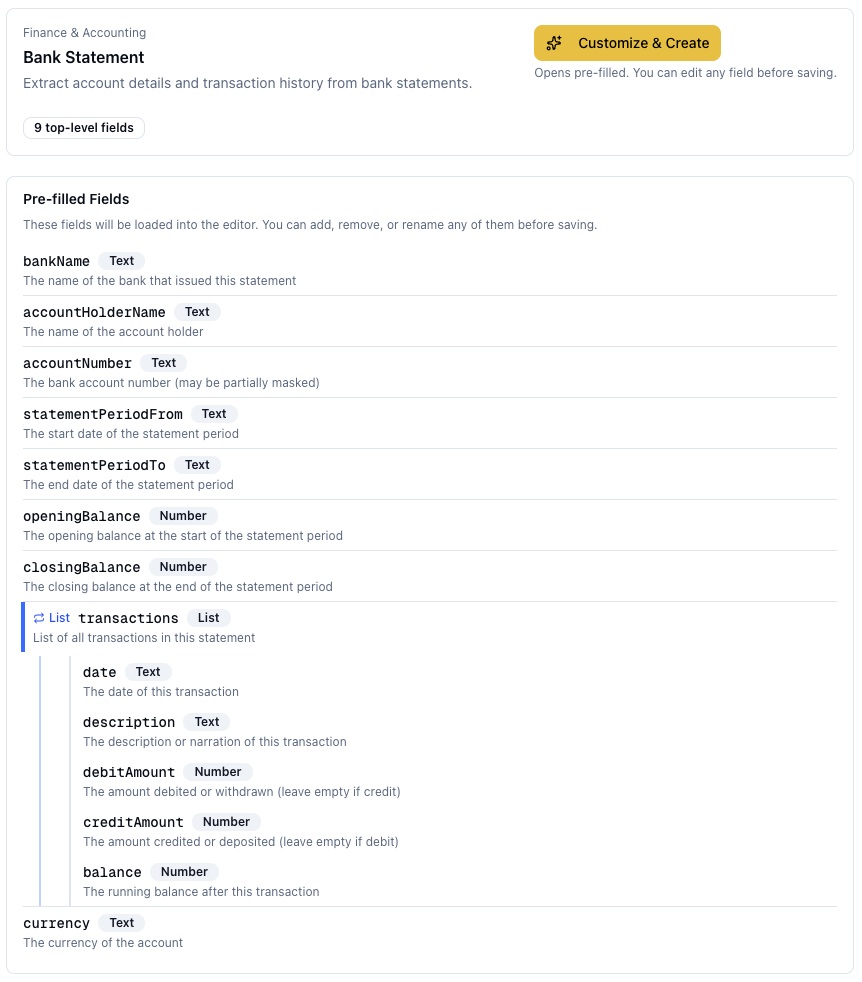
ParserBee does this with Multi-record extraction: one statement in, many rows out. The ready-made bank statement template treats the transaction list as a List (repeating rows), so a 4-page statement with 87 transactions becomes 87 tidy rows without you defining anything technical.
The output looks like this:
| Date | Description | Debit | Credit | Balance |
|---|---|---|---|---|
| 03/06/2026 | Direct debit: Brightway Office Supplies | 1,488.00 | 12,304.55 | |
| 05/06/2026 | Card payment: Clearview Insurance | 214.20 | 12,090.35 | |
| 09/06/2026 | Faster payment received: Invoice 2026-0481 | 3,150.00 | 15,240.35 | |
| 12/06/2026 | Standing order: Unit 7 rent | 950.00 | 14,290.35 | |
| 13/06/2026 | Bank charges: monthly account fee | 12.50 | 14,277.85 |
Multiply that by every statement in your stack, and the case for automation makes itself.
How to convert bank statements to Excel in bulk with Data Lab
Data Lab is ParserBee’s no-code bulk workflow: pick a template, drag in up to 100 statement files, watch them process, and export one combined spreadsheet. There is no code and no technical setup anywhere in this path. Here is the full process.
Step 1: Try one statement free first (recommended). Before creating any account, run a single statement through the free bank statement extractor. It needs no signup and shows you in under a minute how your own bank’s layout extracts. If the free tool reads your statement cleanly, the bulk workflow will too.
Step 2: Pick the bank statement template. In the Template Library, open the bank statement template from the Finance & Accounting section. Rename fields if you want different column headers, then save. Nothing is locked; every field stays editable later.
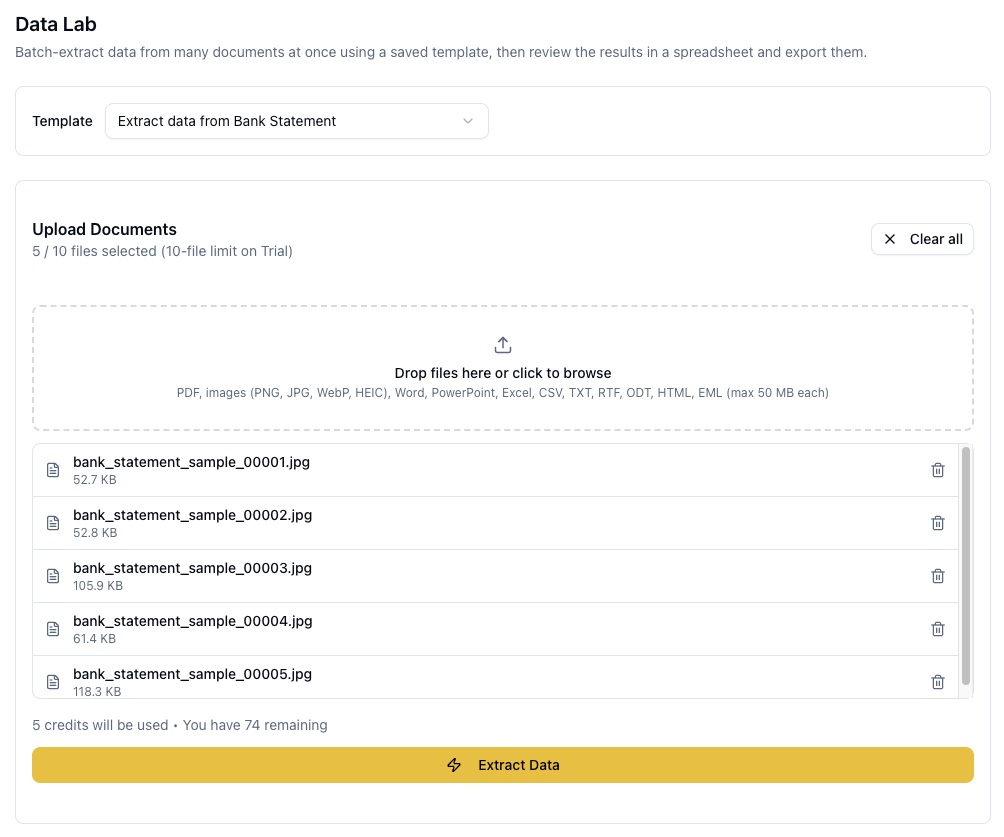
Step 3: Open Data Lab and drag in your statements. Add up to 100 files in one batch. Each file can be a digital PDF, a scan, or a phone photo, up to 50 MB each, and they do not all need to come from the same bank.
Step 4: Click Extract Data and watch the rows appear. Each statement shows a live progress bar, and its transactions land in the results grid as it finishes. A month of client statements processes while you make a cup of tea.
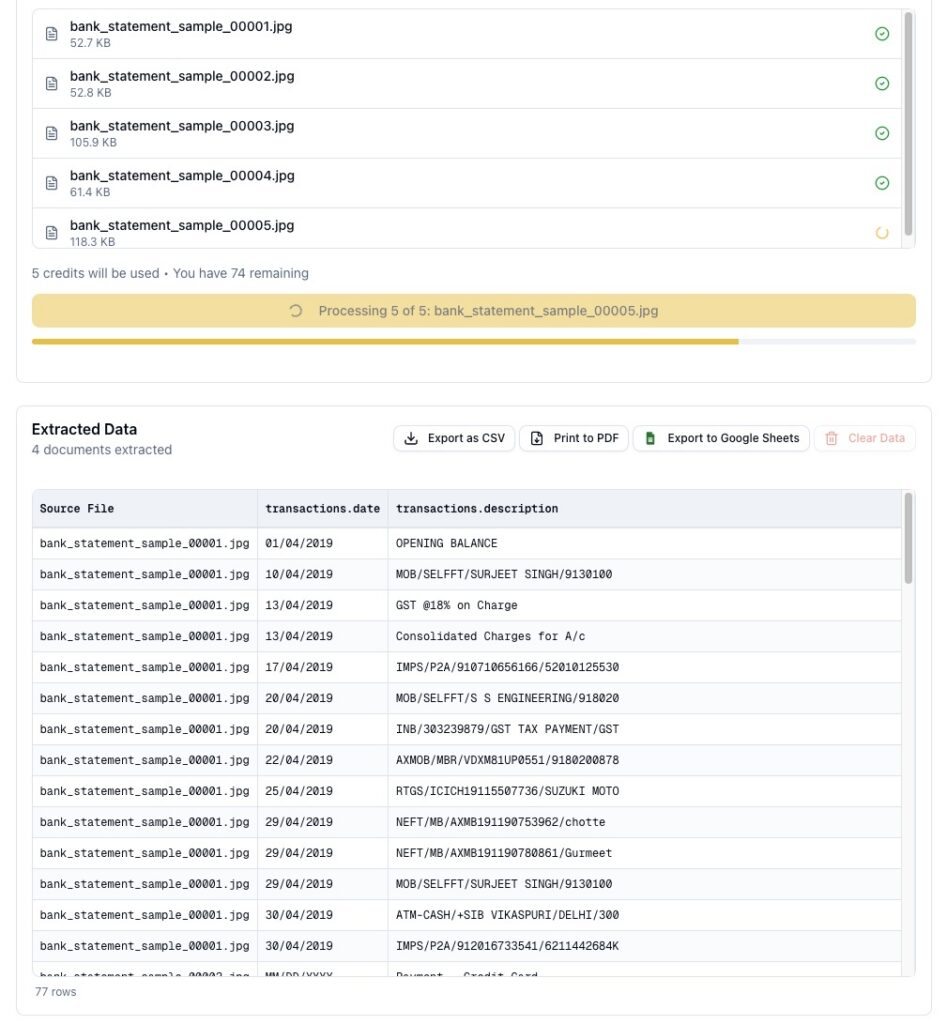
Step 5: Export. Download a CSV and open it in Excel, save a printable PDF, or send everything to a new Google Sheet in one click. For the Google Sheets route, connect your Google account once under Settings, Integrations; ParserBee uses Google’s most restricted permission and can only see spreadsheets it creates itself.
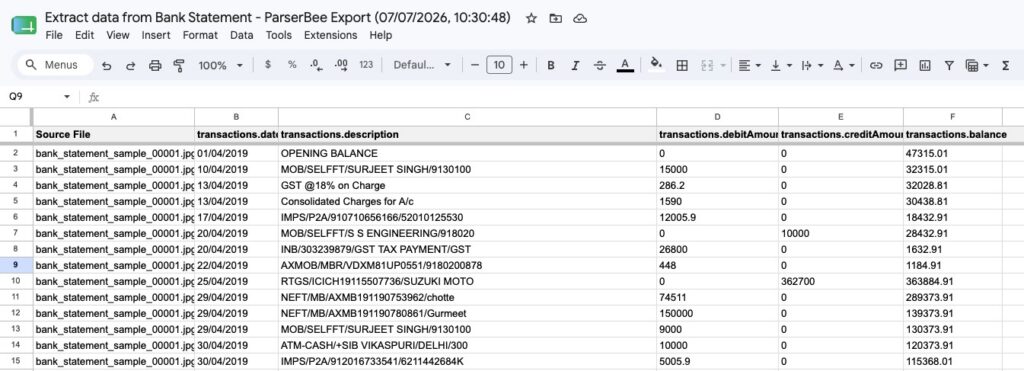
Pro tip: Process one client per batch. Each export then lands as its own tidy file or Google Sheet, and month-end filing stays as organised as the extraction.
Teams that want this fully hands-off, with statements processed the moment they arrive, can connect ParserBee to Zapier or Power Automate, as well as n8n and Make. For most finance teams, though, a monthly Data Lab batch is the whole job.
Ready to try it on your own stack? Extract your first statements free: 25 documents included, no credit card required.
Where bulk statement extraction pays off
The same five-minute workflow serves four different jobs. The common thread is volume: many statements in, one spreadsheet out.
- Monthly reconciliation. Extract the full month’s transactions, then match them against your invoices and bills in Excel. The matching is the real work; the typing no longer exists.
- Expense categorisation. With every description in its own cell, adding a category column beside it takes a filter and a few minutes, not an evening of squinting at PDFs.
- Loan application review. Three months of an applicant’s statements go through in one batch, giving you a complete, sortable transaction history before the file review starts.
- Client bookkeeping at scale. Run one batch per client, even when their statements come from different banks. The template reads each layout by meaning, not position, so mixed banks in one run are fine.
Honest limitations
ParserBee handles the extraction; a few things remain yours to manage. Knowing them upfront saves surprises later.
- Password-protected statement PDFs must be unlocked before upload. Some banks encrypt downloaded statements; remove the password first or request an unprotected copy.
- ParserBee processes statement files, not live bank feeds. It never connects to your bank account. If you want a live connection, you want a different category of tool (see the next section).
- Unusual layouts can extract imperfectly. The overwhelming majority of statements work first time, but test your own bank’s format before committing to a big batch. The free tool exists for exactly this.
- Verify before financial reporting. Run one simple check on every statement: compare the extracted closing balance against the printed closing balance on the original. If they match, every debit and credit in between almost certainly landed correctly.
ParserBee vs live bank aggregators (Plaid, Yodlee, TrueLayer)
These are different tools for different problems. Plaid, Yodlee, and TrueLayer connect software directly to live bank accounts through APIs; they are built for fintech developers creating apps. ParserBee is for people who receive statements as files and need the data out of them.
| ParserBee | Plaid / Yodlee / TrueLayer | |
|---|---|---|
| Works from | Statement files (PDF, scan, photo) | Live bank account connections |
| Built for | Finance teams, accountants, bookkeepers | Fintech developers |
| Bank login required | Never | Yes, account holder authorises |
| Historic or third-party statements | Yes | Limited |
| Setup | Minutes, no code | Developer integration |
If your clients email you PDFs, an aggregator cannot help; there is no login to connect. If instead you are building an app that needs your users’ live balances, an aggregator is the right tool and ParserBee is not. Most accounting and lending workflows involve received files, which is exactly the problem ParserBee solves.
Frequently asked questions
What if my bank’s PDF is password protected?
Unlock it before uploading. ParserBee cannot open encrypted files, so either remove the password using your PDF viewer’s save-a-copy option or download an unprotected version from your online banking. Once unlocked, the statement processes like any other file.
Can it handle statements from any bank?
Almost all, because ParserBee’s AI reads statements by meaning rather than by position on the page, so it does not depend on any one bank’s layout. A small number of unusual formats extract imperfectly. Test your specific bank through the free extractor first; one minute of testing removes the doubt.
How does it handle transactions that continue across pages?
Automatically. ParserBee reads the whole statement as one document, so a transaction list that runs across three or four pages still comes out as one continuous set of rows, without repeated headers or broken lines. Multi-page statements are the normal case, not an edge case.
Is it accurate enough for financial reporting?
Accuracy is high on printed statements, and unlike manual entry it does not degrade with fatigue. Even so, verify before you file: check the extracted closing balance against the printed one on each statement. If those match, the rows between them reconcile. Treat extraction as removing the typing, not the accountant.
Is my financial data secure?
We never store the documents. We do not use them for AI training.
Convert your bank statements to Excel today
The decision tree is short. One statement to check? Use the free bank statement extractor, no account needed. A stack of them every month? Data Lab: batch upload, one combined spreadsheet, export to Excel, CSV, or Google Sheets. Statements that should process themselves the moment they arrive? Connect ParserBee to Zapier or Power Automate.
Whichever path fits, the hours of retyping and the transposition errors that come with them are optional now. Extract your first statements free with 25 documents included and no credit card, and see the free trial details on the pricing page.
Table of Contents
How to Stop Manual Data Entry from PDF to Excel (For Non-Technical Teams)
data extraction, Excel, No Code, PDF extraction
The Best Invoice Automation Software for Small Businesses in 2026
data extraction, Invoices
10 Best Invoice OCR Software in 2026 (Tested on Real Invoices)
Comparisons, data extraction, Invoices, No Code