Extract Data from Expense Reports Automatically
Upload expense report PDFs and get employee name, expense lines, categories, amounts, and approval status extracted and structured without manual review.
Used by finance teams, HR departments, and expense management platforms worldwide.
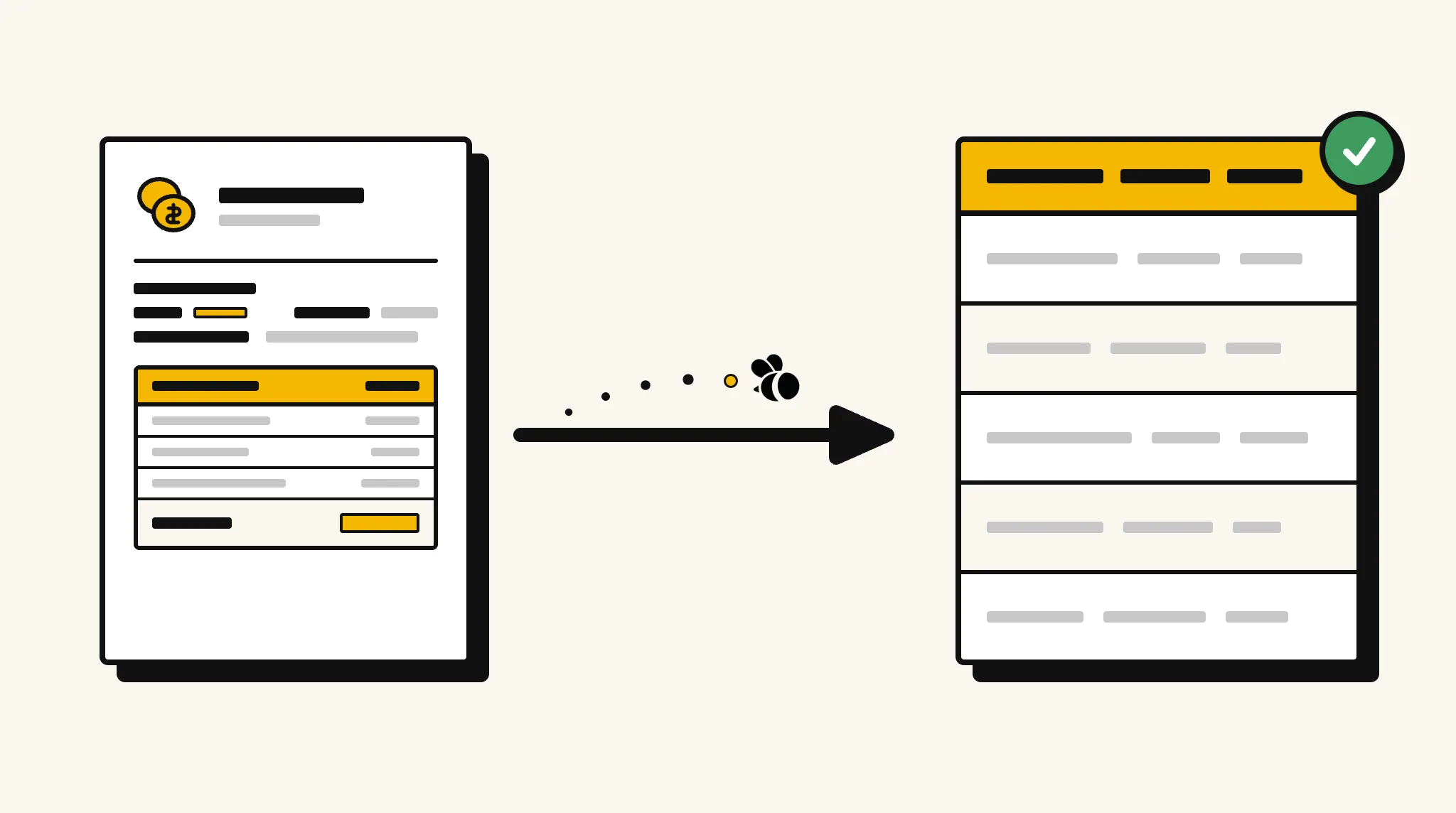
Stop re-entering expense report data into your finance system
Manually reviewing and keying expense line items from submitted reports is slow, inconsistent, and prone to errors that cause reimbursement delays.
❌ Before ParserBee
- Open each expense report PDF and read every line item
- Re-key expense categories, dates, and amounts into your system
- Miss receipts that weren't attached to the report
- Process reports in weekly batches due to manual workload
- Struggle to analyse spending patterns across teams
✅ After ParserBee
- Upload expense reports via browser or API
- Extract all line items with categories, dates, and amounts automatically
- Flag reports with missing receipts or mandatory fields immediately
- Process reports in real time as they are submitted
- Export structured data for spend analysis across departments
How ParserBee Parses Expense Reports
Three steps from document to structured data, no setup or training required.
Upload the Document
Upload a PDF, PNG, JPG, or WebP file. Multi-page documents are processed as a single job.
AI Extracts All Fields
ParserBee identifies and extracts every field automatically, no training or configuration required.
Get Structured Data
Download as JSON or CSV, or use the API to push data directly into your systems on upload.
Fields Extracted from Expense Reports
This extraction template comes pre-built with these fields. Add, remove, or rename any field before saving.
Sample Extracted Output
Upload a expense report and ParserBee returns a structured table like this, automatically.
| Field | Extracted Value |
|---|---|
| Employee Name | Rachel Torres |
| Employee ID | EMP-2214 |
| Department | Sales |
| Report Period | 01 Nov – 30 Nov 2025 |
| Report Date | 01 Dec 2025 |
| Total Amount | $1,847.50 |
| Approver | Michael Chen |
| Approval Status | Approved |
Expense lines, extracted as a list
| Date | Category | Description | Amount |
|---|---|---|---|
| 05 Nov | Travel | Flight SYD–MEL return | $420.00 |
| 07 Nov | Accommodation | Hotel, 2 nights | $380.00 |
| 10 Nov | Meals | Client dinner | $215.00 |
| 15 Nov | Transport | Taxi to client site | $82.50 |
Every field is pulled directly from the document. You define what to extract, ParserBee does the reading.
Export Expense Report Data to Excel, CSV or Google Sheets
No developer needed to convert expense reports to Excel. Upload a whole batch in ParserBee's Data Lab, review every extracted row in a live spreadsheet, then download everything as CSV, print to PDF, or send it straight to a new Google Sheet in one click.
Prefer automation? The REST API returns clean JSON for every expense report, ready for Zapier, Make, n8n, or your own system. See all integrations.
Who Uses This Parser
Frequently Asked Questions
What data is extracted from an expense report?
Employee name and ID, department, report period, submission date, all expense lines with date, category, description, amount and currency, total amount, approver name, and approval status.
Can it handle expense reports with dozens of line items?
Yes. Expense lines are extracted as a repeating list with no limit on the number of rows.
Does it work with scanned paper expense forms?
Yes. Scanned forms in PDF or image format are processed by AI OCR and return structured data just like digital forms.
Can I validate that receipts are attached for each line?
You can add a receiptReference field to each line item. ParserBee extracts the reference if it is present; missing values indicate no receipt was attached.
How do I connect extracted expense data to my ERP?
Use the REST API to receive structured JSON and map it to your ERP expense module using a direct integration or automation platform like Zapier.
Related Document Parsers
Start automating expense report data extraction today
Free to try. No credit card required. Works on your first upload.
Create free account