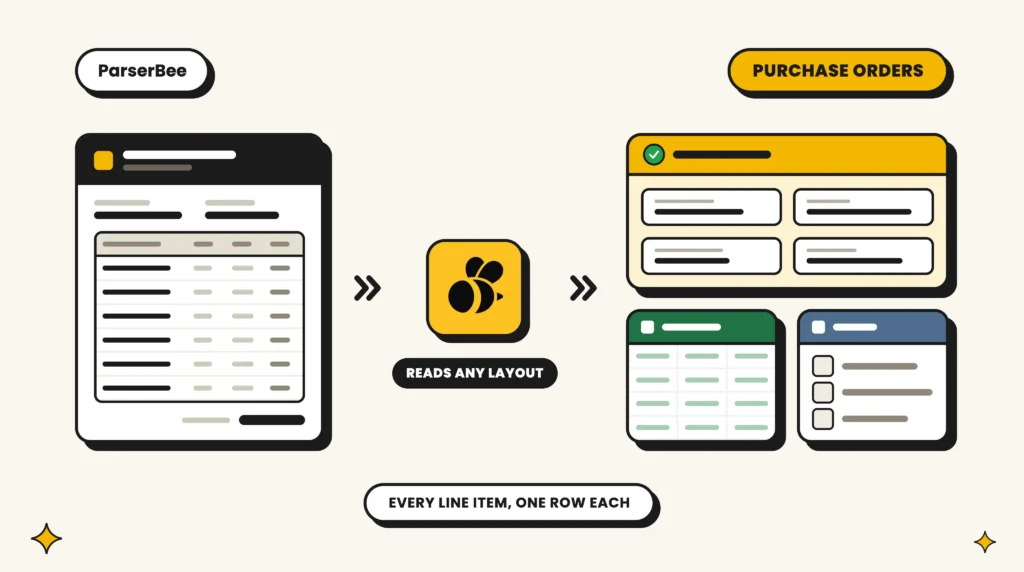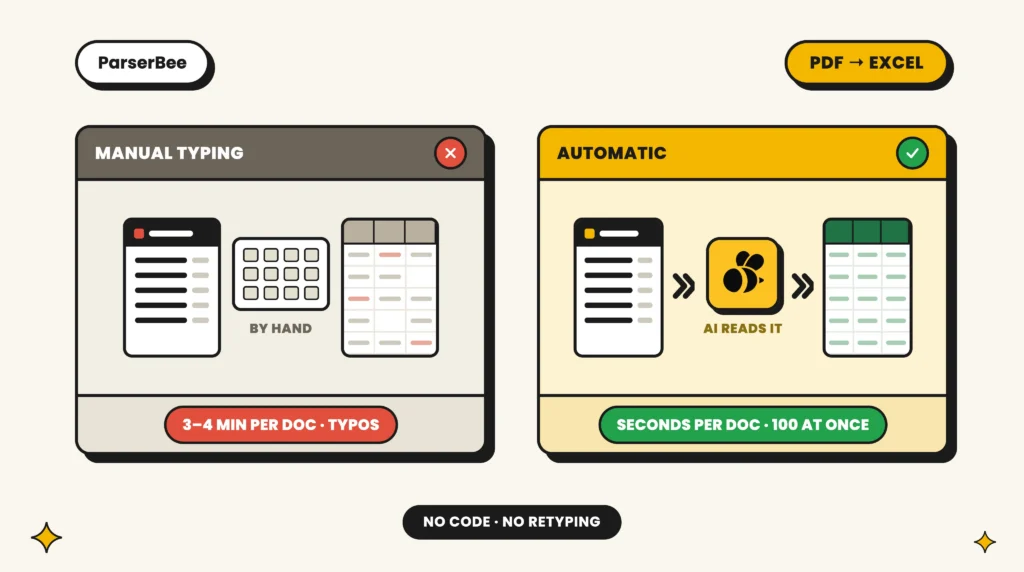
Every customer sends purchase orders in their own layout. One uses a PDF from their ERP, one sends a spreadsheet, and one still sends a photo of a printed form. Somebody on your order desk reads each one and types every line into your system.
Sales order automation removes that typing. We compared the leading tools on four things that matter to an order desk: how well they read POs in any layout, how long it takes to get a first result, what they cost, and how they get the order into your ERP. For most small and mid-sized order desks, ParserBee is the fastest and least expensive way to stop retyping POs. The enterprise platforms further down the list are a better fit if you process hundreds of orders a day on SAP or Oracle, and we say which one suits which business.
We build ParserBee. We scored every tool, including ours, on the same six criteria, and the scores are shown in full below.
Want the how-to first? Jump to the setup guide.
The 10 best sales order automation tools in 2026:
- ParserBee: best for small and mid-sized order desks with many PO layouts
- Ordermatic: best for distributors on mid-market ERPs
- Workist: best for European manufacturers who want a fast start
- Conexiom: best for high-volume manufacturers and distributors
- Go Autonomous: best for large industrial manufacturers
- Rossum: best for enterprises that want one platform for orders and invoices
- Esker Order Management: best for customer service teams on SAP or Oracle
- Zoho Inventory: best low-cost order system for small businesses
- Acumatica: best mid-market cloud ERP for order management
- NetSuite: best if your business already runs on NetSuite
Tools 2 to 7 read POs and are ranked by score. Tools 8 to 10 are ERPs: they are where the order ends up, and none of them reads a PDF purchase order by itself. We include them because many readers are deciding between order entry automation and changing their order system.
In this guide
Quick comparison
| Tool | Starting price | Free trial | Score |
|---|---|---|---|
| 1. ParserBee | $29/month | 25 pages, no card | 9.0 |
| 2. Ordermatic | On request | Demo | 6.7 |
| 3. Workist | On request | Demo | 6.5 |
| 4. Conexiom | On request | Demo | 6.3 |
| 5. Go Autonomous | On request | Demo | 6.0 |
| 6. Rossum | About $18,000/year | 14 days | 5.8 |
| 7. Esker | On request | Demo | 5.3 |
| 8. Zoho Inventory | Free, then $29/month | Free plan | 6.7 |
| 9. Acumatica | On request | Demo | 4.7 |
| 10. NetSuite | On request | Demo | 4.5 |
Each review below has the full comparison for that tool: which PO layouts it reads, time to first result, how the order gets into your ERP, and a score breakdown.
How we scored
Each tool gets a score from 1 to 10 on six criteria. The overall score is the average, and each tool’s review below shows its score on every criterion.
- Reads any PO layout: PDFs, scans, phone photos and spreadsheets, from customers it has never seen.
- Time to first result: how long from sign-up to a customer PO turned into order data.
- Price transparency: a published price and a way to try it without a sales call.
- Fit for small and mid-sized teams: price, contract size and setup effort for a team of one to twenty.
- Gets the order into your ERP: a direct connector scores higher than a CSV import or an automation tool.
- Ease of use: can the order desk run it without IT?
The ERPs score 1 on reading layouts and 2 on time to result because they do not read a PDF purchase order at all. Someone still has to type it, or another tool has to read it first.
1. ParserBee: best for small and mid-sized order desks with many PO layouts
ParserBee is sales order automation software that reads every customer’s purchase order, whatever the layout, and turns each order line into a clean row that your ERP can import. There is no per-customer setup, no sales call and no implementation project. Most order desks have their first batch of POs turned into order lines in about fifteen minutes.
Get started with ParserBee today
No credit card · 25 free pages
Or test one of your POs first, no account needed: free purchase order parser
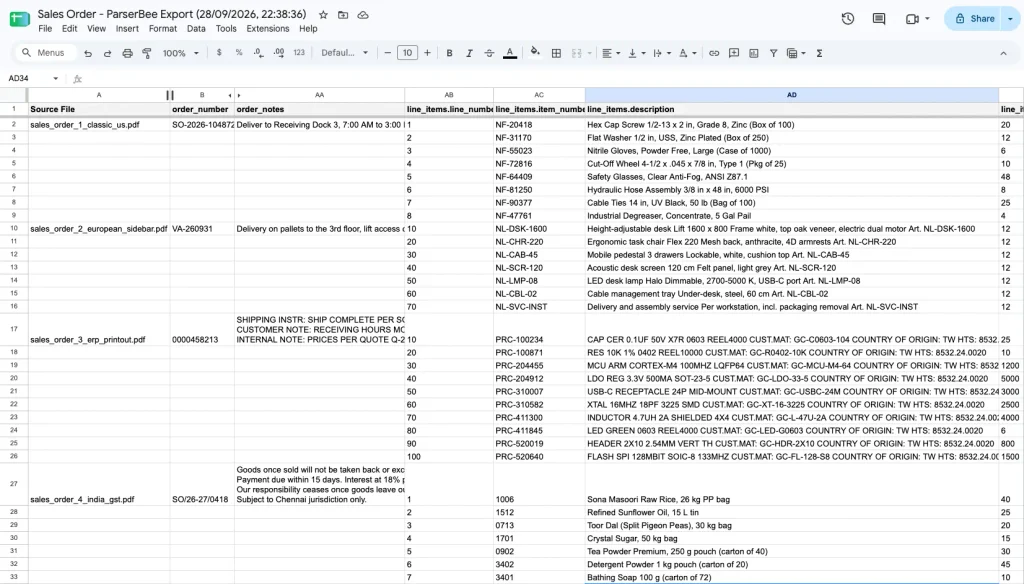
What it does:
- Builds a Parser Template from one real PO. Upload a customer’s PO and our AI engine proposes the fields to extract: PO number, customer, ship-to address, requested delivery date and a list of order lines. Or start from the ready-made Purchase Order template in the Template Library.
- Reads any layout. One Parser Template reads POs from every customer, because the AI works from what each field means, not where it sits on the page. A new customer’s first PO needs no setup.
- Reads the formats customers really send: PDFs, scans, phone photos (including iPhone HEIC), Excel and CSV files, saved emails and several Office formats.
- Processes the day’s orders in one batch. Drop up to 100 POs into Data Lab. Every order line becomes its own row, tagged with the file it came from.
- Sends the data where you need it: a CSV file for your ERP’s sales order import, a new Google Sheet in one click, or a hands-off flow through Zapier, Make, n8n or the REST API.
Pricing: 25 pages free, with no expiry. Starter is $29 a month for 250 pages, Scale is $99 a month for 1,500 pages, and Business is $249 a month or $2,499 a year for 5,000 pages. One page credit reads one page, and a typical PO is one or two pages.
2. Ordermatic: best for distributors on mid-market ERPs
Ordermatic is an order entry automation tool for distributors. It reads orders from emails, PDFs, faxes and even handwritten notes, checks each line against your ERP data, and asks a person to look only at the items it flags.
What it does: reads emailed, faxed, scanned and handwritten orders; checks customer, items, quantities and prices against live ERP data; sends flagged items to a short review; then creates the order in the ERP. It has dedicated setups for Acumatica, SAP Business One and Wherefour, and for Eclipse E4 for print MIS.
Pricing: on request.
3. Workist: best for European manufacturers who want a fast start
Workist is an AI order entry platform used mainly by manufacturers and distributors in Europe. It reads orders in any language and layout and matches each line to your master data before it goes to the ERP.
What it does: captures orders from email, PDF, Excel and fax; extracts the header and every line; matches items to your master data; and transfers the order to common ERP systems. Workist says a setup can go live in about two days.
Pricing: on request.
4. Conexiom: best for high-volume manufacturers and distributors
Conexiom is the best-known name in sales order automation for manufacturing and distribution. It turns emailed orders into ERP-ready sales orders, and it corrects common problems before they reach your system.
What it does: reads orders sent as email, PDF, spreadsheet, EDI, image or text; fixes wrong SKUs, prices, units of measure and shipping details before the order is created; and posts the order to more than 40 ERPs. Conexiom says 87% of orders go through with no human touch.
Pricing: on request.
5. Go Autonomous: best for large industrial manufacturers
Go Autonomous calls its product “autonomous commerce”. It reads B2B orders, checks them against your live ERP and writes the confirmed order back, so your team handles only the exceptions.
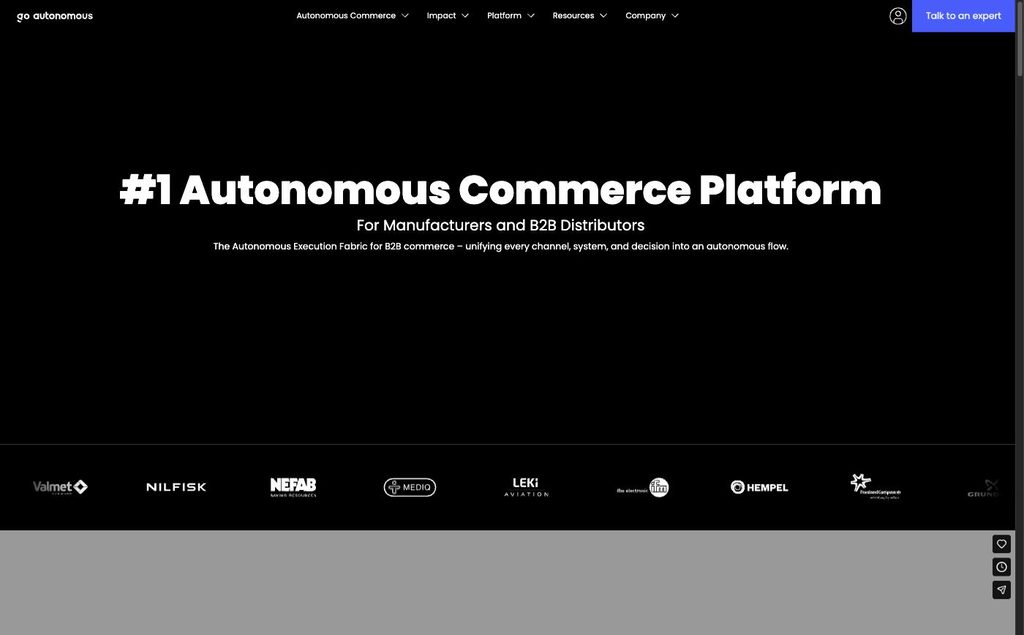
What it does: reads orders from email, PDF, EDI and portals, including customer spreadsheets and orders written in plain sentences; checks price, stock and customer terms against the live ERP; and sends exceptions to a person with the problem already described and a suggested fix. It has an Outlook add-in for the order desk and works with SAP, Oracle, Infor, IFS and Sage.
Pricing: on request.
6. Rossum: best for enterprises that want one platform for orders and invoices
Rossum is an enterprise document AI platform for transactional documents. It reads purchase orders and supplier invoices, so a large company can automate both sides of order-to-cash and procure-to-pay on one platform.
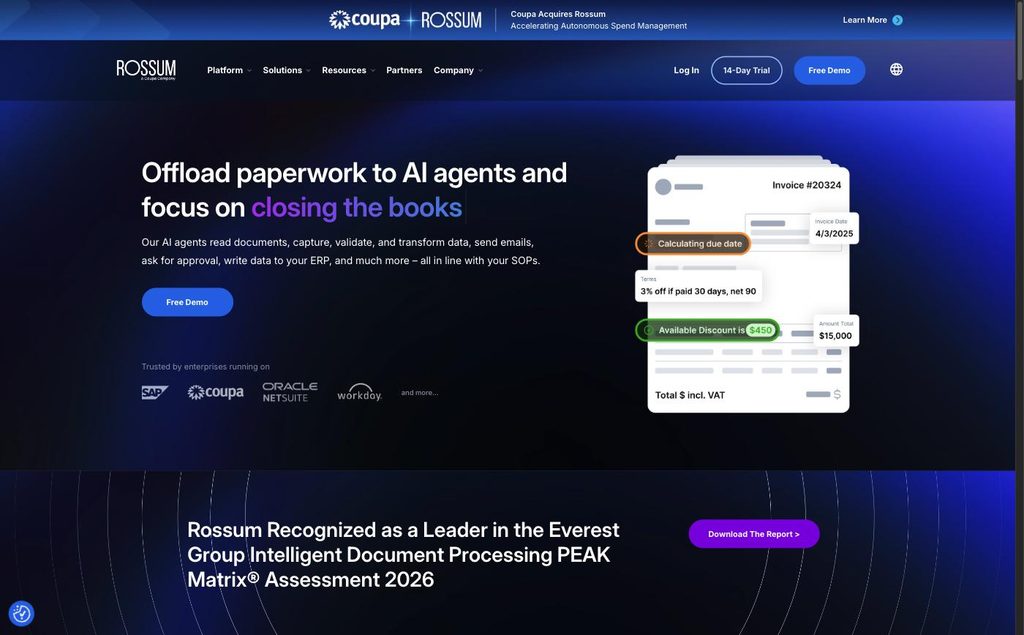
What it does: reads documents without templates, shows each one in a validation screen, matches data to your master data, flags duplicates and posts to ERPs such as SAP, Coupa, Oracle and Workday.
Pricing: starts at about $18,000 a year; 14-day free trial.
7. Esker Order Management: best for customer service teams on SAP or Oracle
Esker Order Management is the sales order processing automation module in Esker’s wider order-to-cash suite. It collects orders from every channel into one queue for the customer service team and checks them against the ERP before it creates them.
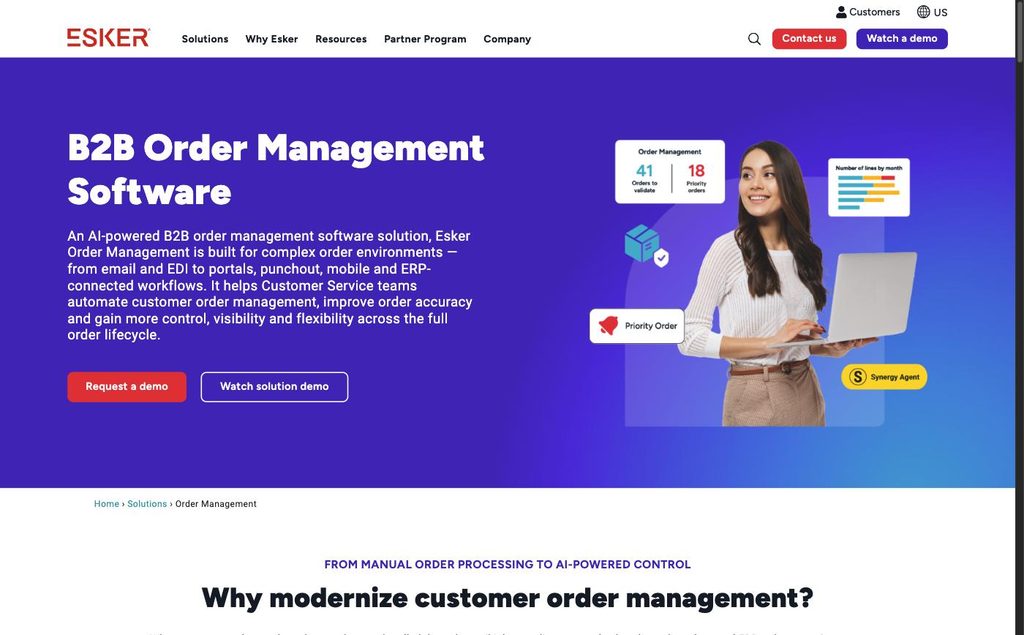
What it does: captures orders from email, EDI, portals, e-commerce, punchout and mobile; extracts header and line data; checks prices and availability live through built-in connectors for SAP and Oracle EBS; and handles change orders, returns and RFQs.
Pricing: on request. A third-party estimate puts common packages at $1,000 to more than $10,000 a month.
8. Zoho Inventory: best low-cost order system for small businesses
Zoho Inventory is an order and inventory system for small businesses. It manages sales orders, stock and orders from several sales channels, at a price small teams can afford. It does not read PDF purchase orders.
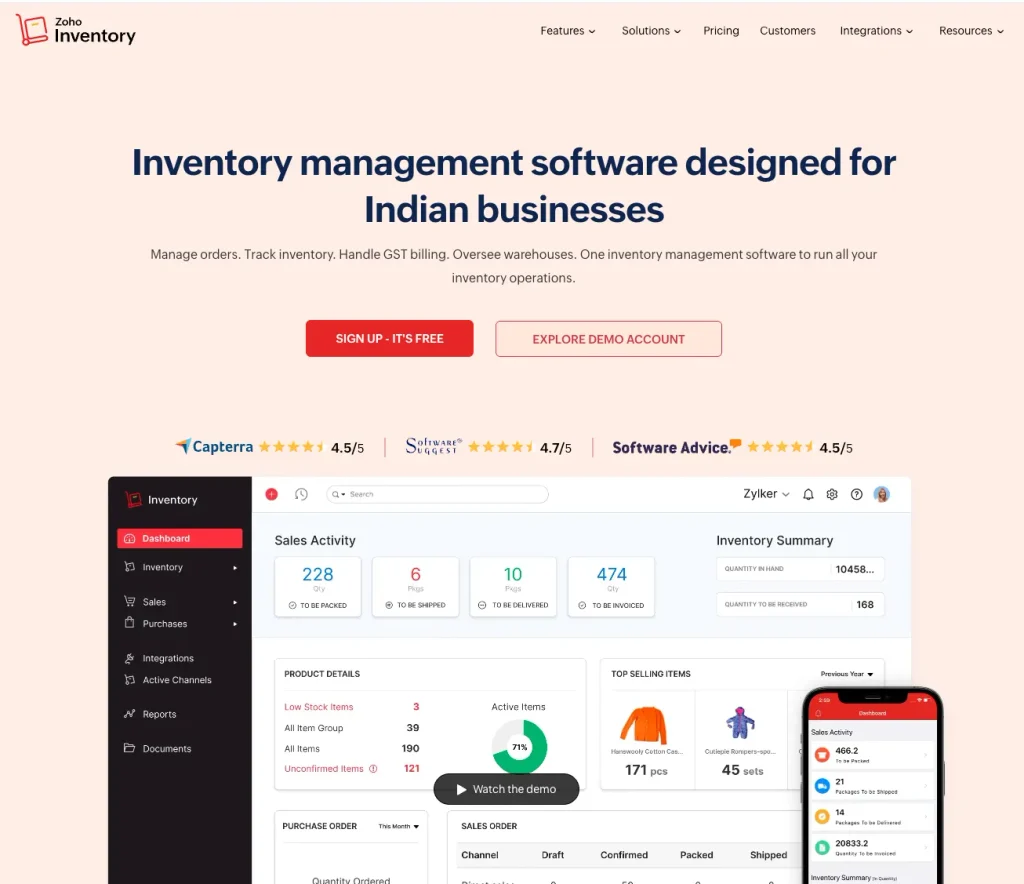
What it does: sales orders, inventory, packages and shipments, with sales orders that can also be created from an imported file.
Pairs with ParserBee: ParserBee turns customer POs into rows, and Zoho Inventory imports them as sales orders, by file or through Zapier.
Pricing: a free plan for up to 50 orders a month. Paid plans start at $29 a month, billed yearly.
9. Acumatica: best mid-market cloud ERP for order management
Acumatica is a cloud ERP for mid-sized businesses, with sales orders and order-to-cash workflows. It is priced by the resources you use, not by the number of users, so the whole team can have access.
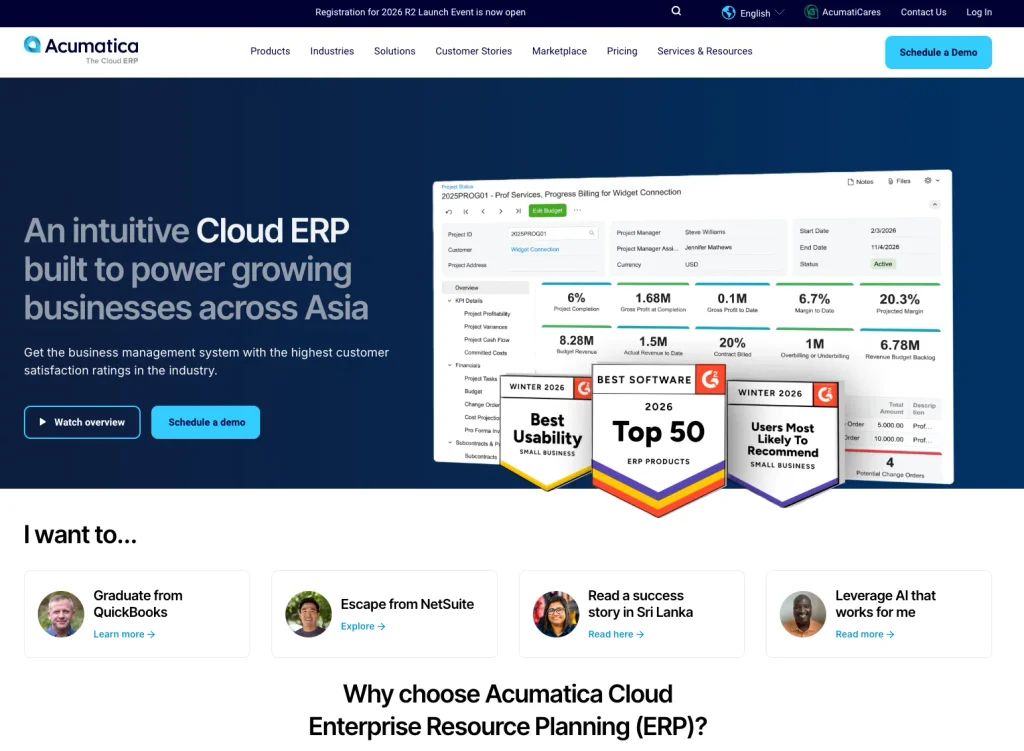
What it does: sales orders, inventory, fulfilment and finance in one system. Sales orders can be imported from a CSV file with an import scenario.
Pairs with ParserBee: export the order lines as CSV and import them with an import scenario.
Pricing: on request.
10. NetSuite: best if your business already runs on NetSuite
NetSuite is Oracle’s cloud ERP, with full order management from sales order to cash. It has good import tools but does not read PDF purchase orders.
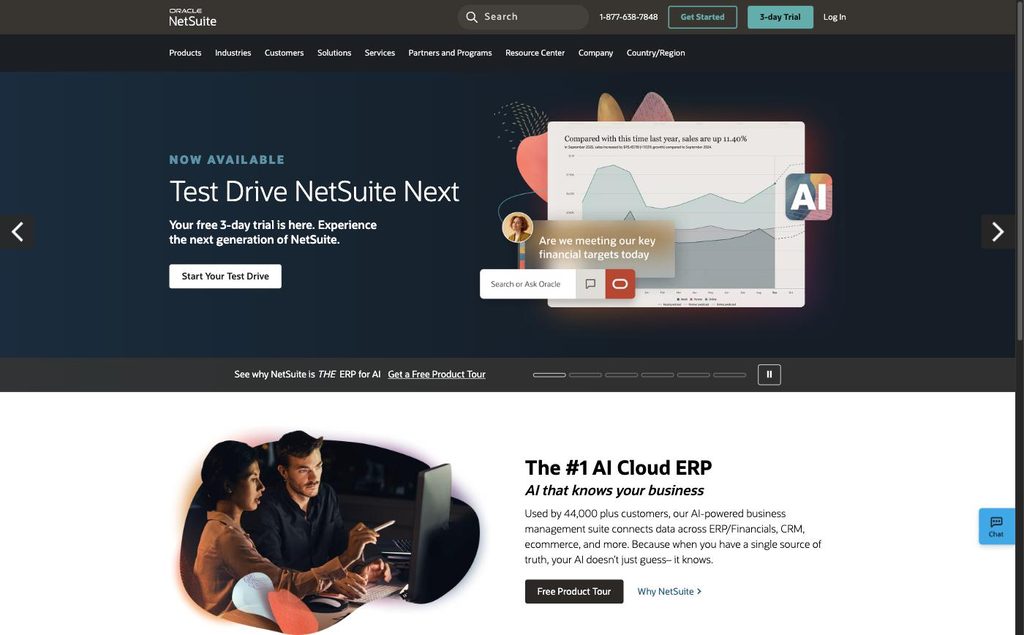
What it does: sales orders, fulfilment, billing and finance. The Import Assistant imports sales orders from CSV files, and a saved import can be run again each day.
Pairs with ParserBee: export the order lines as CSV. NetSuite groups lines into one sales order when they share the same order reference, so fill the PO number down to every line first (see step 5).
Pricing: on request.
How to choose sales order automation software
Answer four questions and the list narrows fast.
1. How many orders do you enter a day? If the answer is in the hundreds and you run SAP, Oracle or Infor, look at Conexiom, Go Autonomous or Esker. They check each order against the ERP and create it for you, and at that volume their price is easy to justify. If you enter tens of orders a day, the reading step is where most of your order entry time goes, and ParserBee removes it for a fraction of the cost.
2. Which ERP do you use? Ordermatic works best on Acumatica and SAP Business One. Esker is strongest on SAP and Oracle. ParserBee works with any ERP that can import a CSV file, which is almost all of them.
3. Who will run it? Platforms with ERP connectors need IT for setup. ParserBee is designed for the order desk to run itself.
4. Do you need an order system at all? If orders live in spreadsheets and email today, the problem may be bigger than order entry. Zoho Inventory, Acumatica and NetSuite solve that, and ParserBee can still read the POs for them.
Most small and mid-sized teams start their sales order automation with the reading step: turn every PO into clean order lines, check them in a spreadsheet, and import them. That removes most of the manual work for a fraction of the cost of a full platform.
Get started with ParserBee today
No credit card · 25 free pages
Or test one of your POs first, no account needed: free purchase order parser
Sales order basics
Before you automate anything, it helps to be clear on what a sales order is and where it sits. If you know this already, skip to what sales order automation is.
What is a sales order?
A sales order is the document a seller creates to confirm a customer’s order: what will be supplied, in what quantity, at what price, and when and where it will be delivered.
The seller creates it, usually from the purchase order the customer sends. It then drives the work that follows: picking, packing, shipping and, at the end, the invoice. Because it records what both sides agreed, it is also the document that settles questions later, such as “we ordered 10 cases, not 100”.
What a sales order contains
| Section | Field | Usually comes from |
|---|---|---|
| Header | Sales order number | Your ERP |
| Header | Order date | Your ERP |
| Header | Customer name and account | The customer’s PO |
| Header | Customer PO number | The customer’s PO |
| Header | Bill-to address | The PO or your customer record |
| Header | Ship-to address | The customer’s PO |
| Header | Requested delivery date | The customer’s PO |
| Header | Payment terms and shipping method | The PO or your customer record |
| Lines | Your SKU and description | The PO’s item code, translated to your SKU |
| Lines | Quantity and unit | The PO, converted to your unit |
| Lines | Unit price and line total | Your price list, checked against the PO |
| Totals | Subtotal, discount, shipping, tax, total | Calculated |
Most of these fields come from the customer’s PO. That is why reading the PO is the step worth automating.
Sales order vs purchase order vs invoice
A purchase order, a sales order and an invoice describe the same deal from two sides:
| Document | Who creates it | When | What it says |
|---|---|---|---|
| Purchase order | The buyer | Before the order | “We want to buy this.” |
| Sales order | The seller | When the order is accepted | “We will supply this.” |
| Invoice | The seller | After delivery | “Please pay for this.” |
Is a sales order the same as an invoice? No. The sales order confirms the order before anything ships. The invoice asks for payment after delivery. One sales order can lead to several invoices if the goods ship in parts.
The buyer’s side of the deal is called procure-to-pay: purchase order, goods receipt, invoice approval, payment. The seller’s side is order-to-cash: sales order, shipment, invoice, cash. The customer’s PO number appears on the sales order and on the invoice, and it links the two sides together. If you are on the buying side, our purchase order automation guide covers that half.
The sales order process, step by step
- The customer sends a purchase order by email, portal, EDI, fax or phone.
- The order desk enters it as a sales order in the ERP.
- Stock and the customer’s credit are checked.
- An order acknowledgement goes back to the customer.
- The goods are picked, packed and shipped.
- The invoice is sent.
- Payment arrives and is matched to the invoice.
Step 2 is where most of the manual typing happens, and it is the step that sales order automation removes.
Common sales order processing mistakes
- Duplicate orders. The same PO is entered twice, often after a customer sends it again “just in case”.
- Wrong price. The price is taken from the PO or an old price list instead of the current one.
- Wrong item or unit. The customer’s part number is matched to the wrong SKU, or “2 cases of 12” is entered as 2.
- Wrong ship-to address. The head office address from the letterhead is used instead of the delivery site.
- Missing customer PO number. The customer’s accounts team later rejects the invoice because it has no PO reference.
- Slow entry. POs wait in the inbox until someone has time, and every day of waiting is added to the lead time the customer sees.
Almost all of these are reading and typing mistakes, which is exactly what automated sales order processing removes.
What is sales order automation?
Sales order automation (also called sales order processing automation or order entry automation) is the use of software to turn incoming customer orders (PDF purchase orders, emails, spreadsheets and photos) into sales orders in your ERP without anyone retyping them.
The technology behind it is simpler than it sounds. AI reads the document and understands its layout and meaning, so it knows that “12” in one column is a quantity and “4.50” in the next is a unit price, even on a layout it has never seen. Rules then check the data, and an import or an integration creates the order.
Sales order automation is not the same as order management software. Order management runs the order after it exists: stock, picking, shipping and returns. Sales order automation gets the order into the system in the first place.
From customer PO to sales order: what has to change
Reading the PO is only half of the job. The PO is written in the customer’s language, and the sales order must be in yours:
| On the customer’s PO | In your sales order | What goes wrong when it is typed by hand |
|---|---|---|
| Customer’s part number | Your SKU | The wrong item is picked |
| Customer’s unit (case, box, pack) | Your unit (each, kg, metre) | The quantity is wrong by a factor of 12 or 100 |
| The price the customer expects | Your current price list | The order is entered at an old price |
| The buyer’s head office address | The ship-to site | Goods go to the wrong address |
| “Needed by” date in any format | The requested date in your format | 03/04 is read as 4 March instead of 3 April |
| PO number | Customer reference on the order | The invoice is rejected later |
The checks section below shows how to handle each of these with a simple lookup sheet.
How sales order automation works, stage by stage
| Stage | What happens | Who does it in a small-team setup |
|---|---|---|
| 1. Receive | The PO arrives by email, portal, fax or photo | Your inbox |
| 2. Read | The header fields and every order line become data | ParserBee |
| 3. Check | SKU lookup, unit conversion, price and date checks | Your spreadsheet, or a Zapier step |
| 4. Create | The sales order is created in the ERP | CSV import, or Zapier into the ERP |
| 5. Confirm | An order acknowledgement goes to the customer | Your ERP |
The platforms at numbers 2 to 7 offer fully automated sales order processing: all five stages in one product. That is what their higher price pays for. For a smaller order desk, stages 3 to 5 are quick once the reading is done, because the data arrives clean.
EDI and non-EDI orders
Some large customers send orders by EDI (electronic data interchange): structured data that goes straight from their system into yours with no document at all. If you already receive EDI orders, those are automated, and you should keep your EDI provider for them.
The problem is every other customer: the ones who email a PDF, send a spreadsheet, or photograph a printed form. For many distributors and manufacturers, that is most of their customers. Sales order automation for non-EDI orders is what the rest of this guide covers. ParserBee does not handle EDI.
Benefits of sales order automation
- Orders go in the same day. A PO no longer waits in the inbox until someone has time for it.
- Fewer wrong items and quantities. Manual data entry has an error rate of 1% to 4%, according to studies of transcription accuracy. A 20-line PO has more than a hundred typed values, so at that rate most manually keyed POs of that size contain at least one mistake.
- More orders per person. The order desk handles growth without new hires.
- A record of what the customer sent. Every order line can be traced back to the PO it came from.
- New customers need no setup. A new customer’s first PO is read like every other.
How to set up sales order automation with ParserBee
This sales order automation setup takes about fifteen minutes for the first batch and needs no developer.
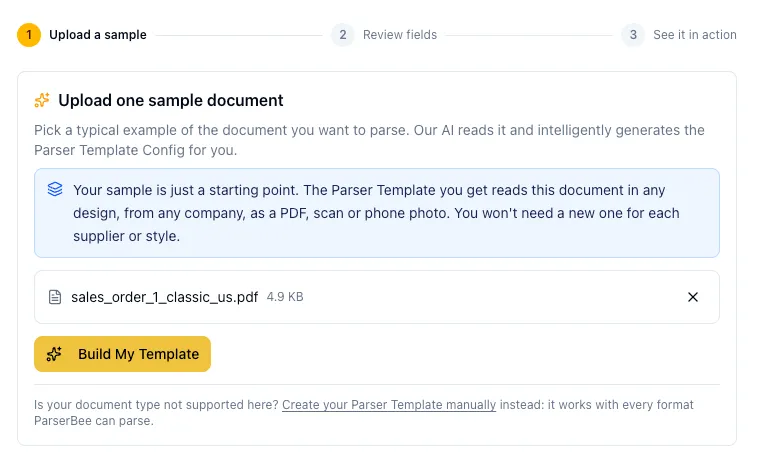
Step 1: Build a Parser Template from one real customer PO
Sign up at parserbee.com (25 pages free, no card required). Create a new Parser Template and choose Build it with AI. Upload a PDF or a photo of a real PO from your most difficult customer. Our AI engine reads it and proposes the fields: PO number, customer, ship-to address, requested delivery date, and a list of order lines with item code, description, quantity, unit and price.
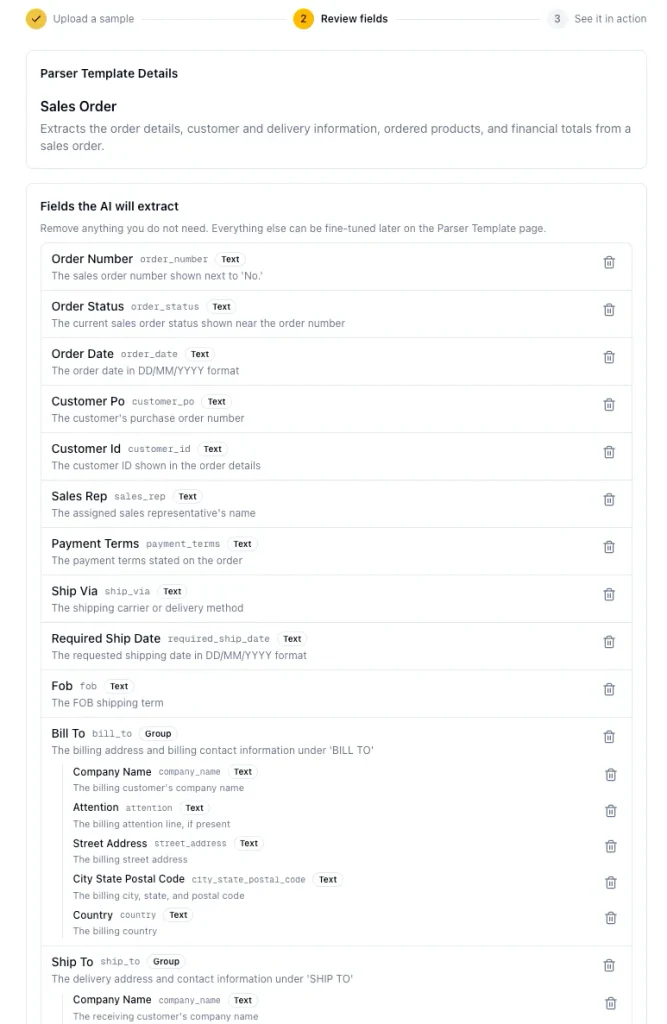
If you prefer to start from a checked field list, pick Purchase Order in the Template Library. It already has the buyer’s details, bill-to and ship-to addresses, requested delivery date, shipping method and terms, and for every line the line number, item code, description, quantity, unit, unit price, line total and line due date.
Step 2: Write the field descriptions for the order desk
Each field has a plain-English description that tells the AI what to extract. Four small changes make the output much easier to import:
- Part numbers. If your customers’ POs show both their part number and yours, use two fields: “The customer’s own part number for this item” and “Our part number for this item, if shown”.
- Units. Keep the unit of measure as its own field on every line, so “2 CS” does not become “2”.
- Dates. Write the format into the description: “The requested delivery date, formatted as YYYY-MM-DD”. Every customer writes dates differently; this makes them all come out the same, and spreadsheets and ERPs read that format without mistakes.
- Ship-to. Make the delivery address description explicit: “The address the goods should be delivered to, not the buyer’s head office address”.
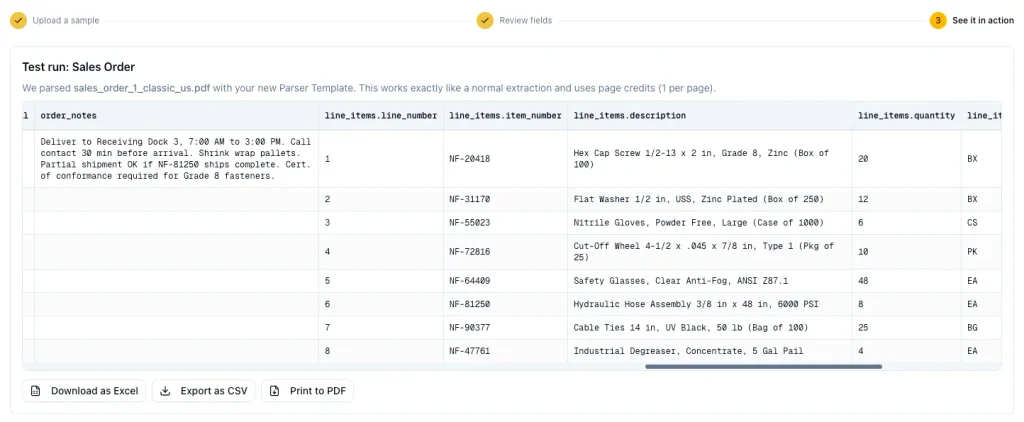
Step 3: See it run on your sample PO
When you continue, the wizard runs a real extraction on the same PO you uploaded in step 1. There is nothing else to upload. The result appears as a table, one row per order line. Check it against the PO. If a field is wrong, click Edit Parser Template and make its description clearer; one clearer sentence usually fixes it.
Step 4: Run the day’s orders in Data Lab
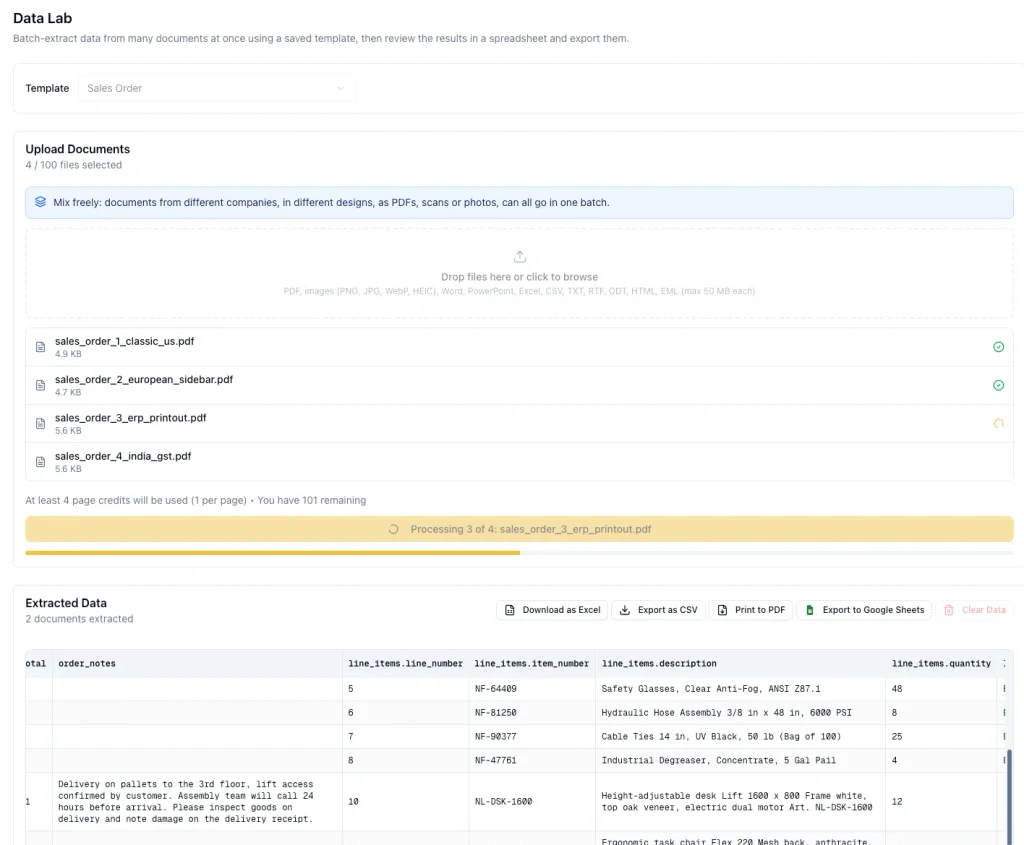
Open Data Lab, select your Parser Template and drag in the day’s POs: up to 10 files per batch on the free plan and 100 on paid plans. Click Extract Data. Each PO is read in turn, and every order line appears as its own row in the results table, tagged with the file it came from. When the batch finishes, a summary lists any file that could not be read and the reason.
Data Lab accepts PDFs, scans, phone photos, Excel and CSV files, saved emails (EML) and several Office formats, up to 50 MB per file. It does not accept DOCX files, so ask customers who send DOCX for a PDF. PDFs can have up to 12 pages on the free plan and 24 pages on paid plans.
Step 5: Get the order lines into your ERP
Click Export to Google Sheets to create a new sheet in one click, or Export as CSV for a file.
In the export, the PO-level fields (PO number, customer, ship-to address, requested date) appear on the first row of each order, and the rows below it carry only the order lines. Most ERP imports need the PO number on every line so they know which lines belong to the same order. Fill the PO-level columns down before you import: the first formula in the checks below does this for you.
Then import the sheet with your ERP’s sales order import. Save the column mapping the first time, so every later import takes a minute.
If POs arrive one by one and you want them in your ERP automatically, connect Zapier (Make and n8n work the same way through ParserBee’s API):
- Trigger: a new email attachment in Gmail or Outlook, filtered to your orders inbox.
- Action: save the attachment somewhere with a public link, such as Google Drive with link sharing, Dropbox or Zapier’s own file storage. The ParserBee action needs a link it can open, not the file itself.
- Action: ParserBee, Extract Data From Document, with your Parser Template ID and the document link from step 2.
- Action: create the sales order in your ERP or accounting app, or add the lines to a Google Sheet for a quick check first.
Full walkthrough with screenshots: Zapier PDF data extraction: the complete guide. Developers can use the REST API, which returns the same data as JSON.
Checks to run before orders reach your ERP
The enterprise sales order automation platforms check every order line against your product list and price list. You can do the same checks in Google Sheets or Excel in a few minutes. Create three small tabs next to your exported orders:
- SKU map: column A is the customer’s part number, column B is your SKU, column C is how many of your units are in one of the customer’s units (for example 12 for a case of 12).
- Price list: column A is your SKU, column B is your current price.
- Imported: column A is every PO number you have already imported.
Then add these columns to your orders sheet. The formulas below use the column letters of a typical export; change them to match yours. In our example, column B is the PO number, column F is the requested delivery date, column H is the item code, column J is the quantity, column L is the unit price, column M is the line total and column N is the subtotal. The new columns start at column Z.
| New column | What it checks | Formula for row 2 (fill down) |
|---|---|---|
| Z: PO | Copies the PO number to every line of its order | =IF(B2<>"",B2,Z1) |
| AA: Delivery date | Copies the requested date to every line | =IF(B2<>"",F2,AA1) |
| AB: Your SKU | Translates the customer’s part number | =IFERROR(XLOOKUP(H2,'SKU map'!A:A,'SKU map'!B:B),"NEW PART") |
| AC: Quantity in your units | Converts cases, boxes and packs | =J2*IFERROR(XLOOKUP(H2,'SKU map'!A:A,'SKU map'!C:C),1) |
| AD: Line total | Quantity times price equals the line total | =IF(ABS(J2*L2-M2)>0.01,"CHECK","OK") |
| AE: Order total | The lines add up to the subtotal | =IF(B2="","",IF(ABS(SUMIF(Z:Z,Z2,M:M)-N2)>0.01,"CHECK","OK")) |
| AF: Price | The PO price matches your price list | =IF(ABS(L2-IFERROR(XLOOKUP(AB2,'Price list'!A:A,'Price list'!B:B),L2))>0.01,"PRICE DIFFERS","OK") |
| AG: Date | The date is not in the past or beyond your lead time | =IF(AA2="","NO DATE",IF(AA2<TODAY(),"IN THE PAST",IF(AA2>TODAY()+30,"BEYOND LEAD TIME","OK"))) |
| AH: Duplicate | The PO has not been imported before | =IF(COUNTIF(Imported!A:A,Z2)>0,"ALREADY IMPORTED","OK") |
| AI: Needs review | TRUE when any check fails | =OR(AB2="NEW PART",AD2="CHECK",AE2="CHECK",AF2<>"OK",AG2<>"OK",AH2<>"OK") |
Change the 30 in the date check to your normal lead time in days. Then filter the sheet on Needs review = TRUE. A person looks only at those rows; everything else is ready to import. When a new part number appears, add it to the SKU map once, and it is translated automatically on every later order.
XLOOKUP works in Google Sheets and in Excel for Microsoft 365. In older versions of Excel, use VLOOKUP instead.
Get started with ParserBee today
No credit card · 25 free pages
Or test one of your POs first, no account needed: free purchase order parser
Setup mistakes to avoid
Building a Parser Template for each customer. You do not need to. Describe what each field means, not where it sits, and one Parser Template reads every customer’s PO. If you find yourself making “Acme PO” and “Globex PO” templates, make the descriptions more general instead.
Leaving out the unit of measure. It is the most expensive silent error in order entry. A case of 12 entered as 1 each is an order short by 11, and nobody notices until the goods arrive.
Mixing up bill-to and ship-to. Many POs show the head office address in the letterhead and the delivery site further down. Keep them as two separate fields.
Going fully automatic on the first day. For the first two weeks, look at every order before it is imported. After a few hundred clean orders, look only at the rows the checks flag.
Forgetting your EDI customers. Keep them on EDI. Use sales order automation for everyone else.
Accepting DOCX files. Ask customers who send DOCX purchase orders to send a PDF instead.
Frequently asked questions
What is sales order automation?
Sales order automation is the use of software to turn the purchase orders your customers send (PDFs, emails, spreadsheets and photos) into sales orders in your ERP without anyone retyping them. AI reads the document, checks make sure the data is correct, and an import or integration creates the order.
What is the best sales order automation software?
For small and mid-sized order desks, ParserBee is the best fit: it reads any PO layout with no setup, costs from $29 a month and works with any ERP that imports a CSV file. For hundreds of orders a day on SAP, Oracle or Infor, Conexiom, Go Autonomous and Esker check each order against the ERP and create it for you, at enterprise prices.
Is a sales order the same as an invoice?
No. A sales order confirms what the seller will supply before anything ships. An invoice asks the customer to pay after delivery. One sales order can lead to several invoices if the order ships in parts.
What is the difference between a purchase order and a sales order?
The buyer creates the purchase order to say what they want to buy. The seller creates the sales order to confirm what they will supply. The sales order is usually built from the purchase order, and it carries the customer’s PO number so the two can be matched.
How do I automate sales order entry from emailed PDF purchase orders?
Use an AI document parser to read the PDFs into order lines, then import the lines into your ERP. With ParserBee, you build a Parser Template from one sample PO, run the day’s POs through Data Lab, and export to CSV or Google Sheets. For a hands-off flow, connect your inbox through Zapier so each new PO is read and sent on as it arrives.
Can one setup read POs from every customer, in different layouts?
Yes. Modern AI reads what each field means rather than where it sits on the page, so one Parser Template reads a PO with the PO number at the top left and another with it in the footer. A new customer’s first PO needs no setup.
What is the difference between sales order automation and EDI?
EDI sends orders as structured data from the customer’s system straight into yours, so there is no document to read. It works well with large customers that support it. Sales order automation handles everyone else: the customers who send PDFs, spreadsheets, emails and photos.
Can I send the extracted order lines to NetSuite, QuickBooks, Xero or another ERP?
Yes. Export the lines as a CSV file and use your ERP’s import, or connect ParserBee to your ERP through Zapier, Make or n8n. Developers can use the REST API. ParserBee does not have direct ERP connectors.
How much does sales order automation software cost?
Order automation platforms such as Conexiom, Go Autonomous and Esker are priced by quote, and a third-party estimate puts Esker’s common packages at $1,000 to more than $10,000 a month. ParserBee has 25 free pages, then plans from $29 a month for 250 pages. A typical PO is one or two pages.
How long does it take to set up sales order automation?
Enterprise platforms usually need an implementation project of several weeks. With ParserBee, most order desks have their first batch of POs turned into order lines in about fifteen minutes.
What is the difference between sales order automation and order management software?
Order management software runs an order after it exists: stock, picking, shipping and returns. Sales order automation gets the order into the system in the first place, by reading the customer’s PO so nobody has to type it.
Keep reading:
- Purchase Order Automation: What It Is, How It Works, and How to Set It Up
- Zapier PDF Data Extraction: The Complete Guide (2026)
- Breaking Down Data Lab: Bulk Document Extraction, No Code Required
- Extract data from purchase orders with the ready-made Parser Template
Last updated September 2026. ParserBee plan details reflect the pricing page at the time of writing. Details of other tools come from each vendor’s own website and should be checked before you make a decision.