
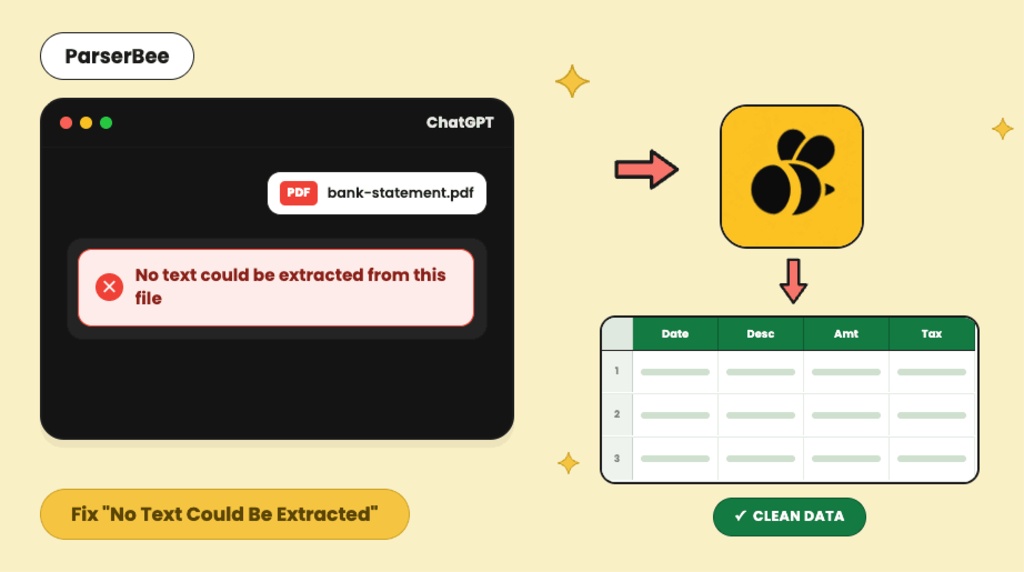
If ChatGPT has just told you “no text could be extracted from this file”, your PDF almost certainly contains pictures of text rather than actual text. Scanned documents, photographed pages, and image-based exports all look normal to you, but to software they are photographs of ink with nothing to copy.
The fix depends on what you need. If you want ChatGPT to simply read the document, there are three workarounds below that take a minute each. If you are trying to get data out of the file and into a spreadsheet (invoices, bank statements, receipts, forms), there is a better route entirely, and we cover that too.
TL;DR: The error means your PDF has no text layer, which usually means it is a scan or a photo. You can fix it inside ChatGPT by uploading the pages as images, pasting the text manually, or re-exporting the PDF. If your real goal is structured data in Excel or Google Sheets, use a purpose-built extraction tool instead: it reads scans directly and returns labelled rows, not a chat reply.
Here is the short version: ChatGPT cannot read your file because it is a picture of text, and ChatGPT does not reliably run OCR on it. ParserBee’s free browser tools do. If your file is a bank statement, use the free bank statement converter. If it is a resume, use the free resume parser. Both read scans and photos and give you the extracted data in seconds, no signup. For any other document type, ParserBee’s template library covers 83 document formats, with your first 25 pages free.
Why ChatGPT says no text could be extracted
ChatGPT reads the invisible text layer inside a PDF, and the message that no text could be extracted from this file appears when that layer does not exist or cannot be reached. The document is not broken and neither is ChatGPT; the file simply contains images where the reader expected text.
Four situations cause almost every case:
- The PDF is a scan. A scanner takes a photograph of each page. Unless OCR was applied when scanning, the file contains pictures only. This is the most common cause by far.
- The PDF was made from photos. A phone photo of a document saved or merged into a PDF has the same problem: it is an image wearing a PDF file extension.
- The file is password protected or restricted. Some banks and payroll systems lock their PDFs. A protected file cannot be read until the password is removed.
- The file is corrupted or unusually built. Occasionally a PDF is exported in a way that garbles its text layer. It opens fine on screen, but the text underneath is unreadable to software.
A 10-second test: open the PDF and try to select a sentence with your cursor. If you can highlight individual words, the file has real text. If your selection drags a blue box across the whole page, you have images, and that is why ChatGPT can’t extract text from your PDF.
You can verify this in ten seconds: upload the file to one of ParserBee’s free tools. If our OCR reads it, the file was extractable all along, and you will see exactly which fields come out.
Three ways to fix it inside ChatGPT
You can usually get ChatGPT to read a failed file within a minute or two. Which fix to use depends on the file you have.
- Fix 1: Upload the pages as images instead. ChatGPT can read images directly, and its image reading does not depend on a text layer. Take a screenshot of each page (or export the PDF pages as PNG or JPG) and upload those. For a document of a few pages, this is the fastest fix.
- Fix 2: Copy the text yourself. If the PDF does let you select text but ChatGPT still fails, select all, copy, and paste the text straight into the chat. Formatting is lost, but the content arrives intact.
- Fix 3: Repair the file. For a protected PDF, remove the password first (use your PDF viewer’s “save a copy” or “print to PDF” option, entering the password once). For a corrupted file, print to PDF creates a fresh, clean copy. Then upload the new file.
These fixes work, but notice what they have in common: you are doing manual preparation for every single document, every single time. For one file, fine. For this month’s stack of invoices or three months of bank statements, the workaround becomes the job.
When ChatGPT is enough, and when it is the wrong tool
ChatGPT is genuinely good at reading a document and answering questions about it. It is the wrong tool when the output needs to be reliable, structured data in a spreadsheet, especially at any volume.
The difference matters most with numbers:
- Chat replies are not spreadsheet rows. ChatGPT gives you prose or a loosely formatted table in a chat window. You still have to get it into Excel, check the columns line up, and repeat the prompt for every document.
- Accuracy varies on tables and figures. Language models sometimes misread, skip, or subtly alter numbers in long tables, and they do it confidently. For a summary, harmless. For a bank reconciliation, a real problem.
- There is no batch workflow. Fifty documents means fifty uploads, fifty prompts, and fifty copy-pastes. The manual work you were trying to escape comes back in a new costume.
- Consistency is not guaranteed. Ask the same question of ten invoices and you may get ten slightly different response formats, which defeats the point of putting them in one sheet.
| ChatGPT | Purpose-built extraction (ParserBee) | |
|---|---|---|
| Reads scans and photos | Only via image upload workaround | Yes, directly |
| Output | Chat reply you copy out | Labelled spreadsheet rows |
| Same fields every time | Not guaranteed | Yes, defined once in a template |
| Documents per run | One at a time | Up to 100 in a batch |
| Export | Manual copy-paste | CSV, Excel-ready, or straight to Google Sheets |
If your end goal was always “this data, in my spreadsheet”, the error message you hit today is a good moment to switch tools rather than patch the workaround.
How to extract the data properly: scans in, spreadsheet out
A purpose-built document parser skips the text-layer problem entirely. ParserBee’s AI reads scans, photos, and digital PDFs the same way, and returns the specific fields you ask for as clean rows. There is no code and no technical setup in this route.
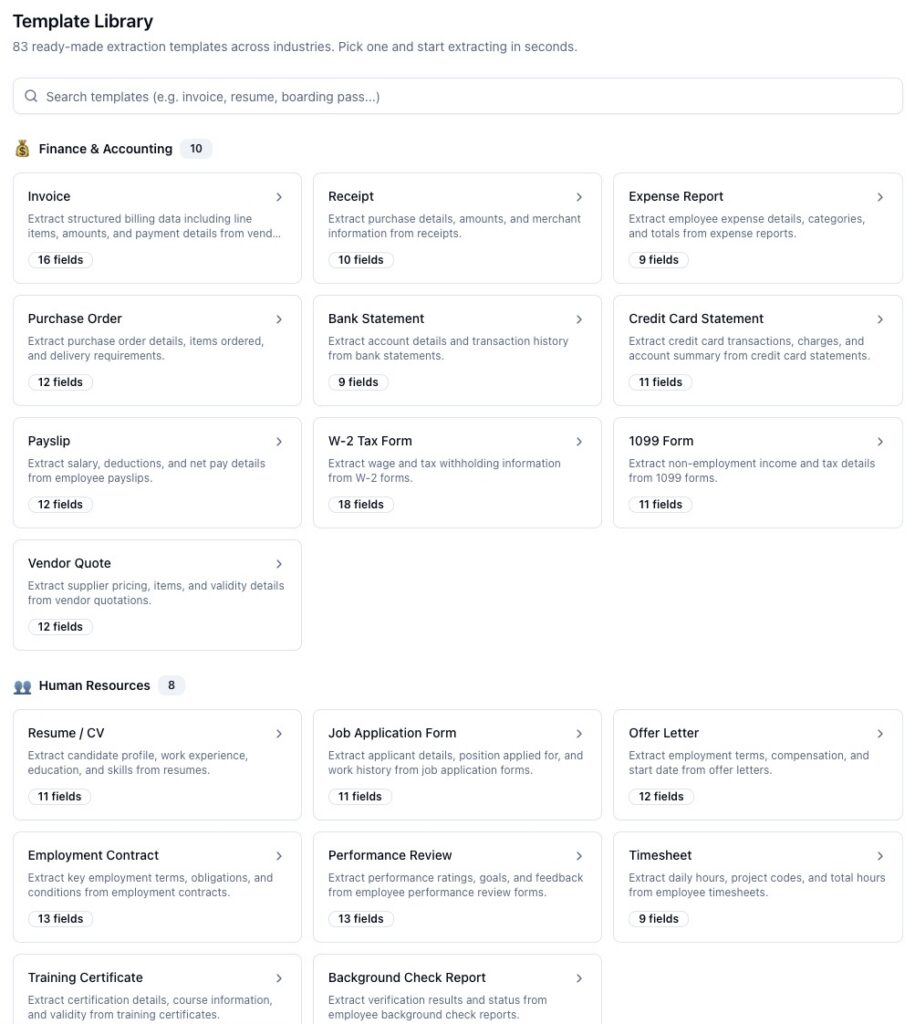
Step 1: Pick a template. A template is your list of “things I want from every document”. The Template Library has more than 80 ready-made ones (invoices, bank statements, receipts, resumes, forms). Open the closest match and adjust the field names if you like.
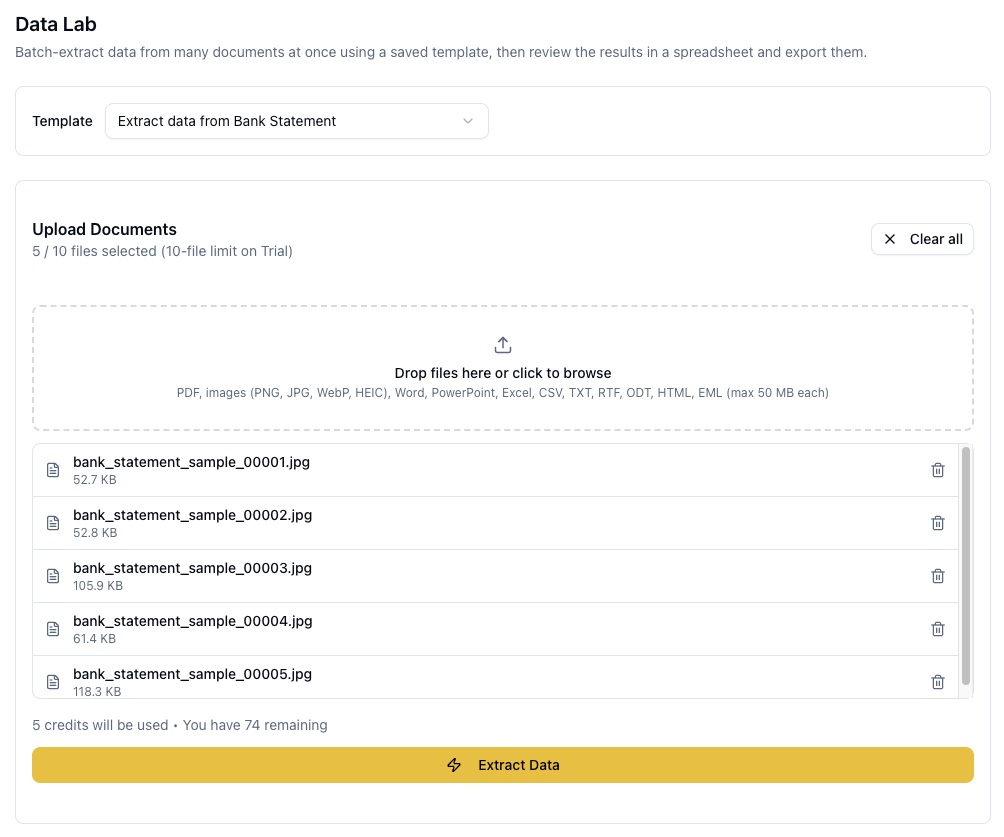
Step 2: Upload your documents. Drag in the same file that ChatGPT rejected. Scans, phone photos (including iPhone HEIC), Word files, and digital PDFs all work. For a stack of documents, use Data Lab and drop in up to 100 files at once.
Step 3: Extract and export. Each document’s data lands in a results grid as labelled rows. Export a CSV for Excel, save a printable PDF, or send everything to a new Google Sheet in one click.
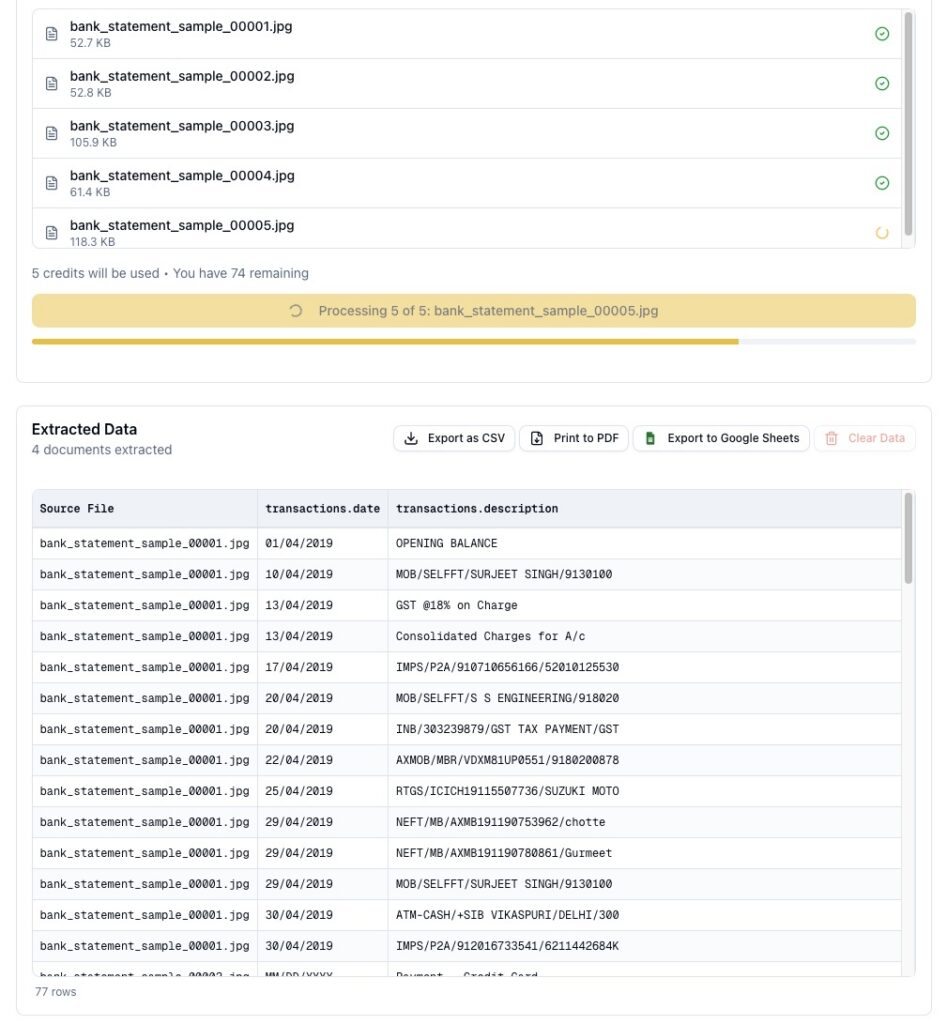
Pro tip: Test with the exact document that failed in ChatGPT. It is the perfect test file: if it extracts cleanly here (it almost certainly will), you have your before-and-after comparison in under two minutes.
You can try this on your failed file right now: extract your first documents free. The trial includes 25 documents and needs no credit card.
One honest caveat that applies to every tool
Password-protected PDFs fail everywhere, including in ParserBee. No legitimate tool can open an encrypted document without the password. Remove the protection first (open the file with its password, then save an unprotected copy), and it will process normally. And whichever tool you use for financial documents, verify the output against the original before you rely on it; with statements, checking the closing balance takes ten seconds and confirms the rows between.
Frequently asked questions
Why does ChatGPT fail on scanned PDFs specifically?
A scanned PDF contains photographs of pages rather than actual text, and ChatGPT’s file reader looks for a text layer. When there is none, it reports that no text could be extracted. The document reads perfectly to human eyes, which is why the error feels so confusing.
Can ChatGPT read a scanned document at all?
Yes, as images. Upload screenshots or exported page images instead of the PDF and ChatGPT will read them with its image understanding. It works well for a few pages. It becomes impractical when you have many documents or need the output as structured spreadsheet data.
Is it safe to upload financial documents to ChatGPT?
Check the data settings on your ChatGPT plan before uploading anything sensitive; policies on how uploads are stored and used differ by plan and change over time. Many finance teams prefer purpose-built tools with narrower permissions. ParserBee’s Google Sheets export, for example, uses Google’s most restricted permission and can only see spreadsheets it creates itself.
What is the difference between OCR and what ChatGPT does?
OCR converts pictures of characters into text, and nothing more. ChatGPT understands and summarises text it can already read. Document extraction tools like ParserBee combine both jobs: they read scans and photos, then organise what they find into the exact labelled fields you asked for.
Will the same error happen in other AI chat tools?
Often, yes. Most chat assistants read PDFs through a text layer the same way, so a scan that fails in one tends to fail in the others. The fixes in this guide (images, paste, re-export) generally work across them, and the structured-data route avoids the problem entirely.
The error is a fork in the road
“No text could be extracted from this file” is not a dead end; it is a diagnosis. Your document is a scan, and you now know the two ways forward. If you just need ChatGPT to read it, upload the pages as images and carry on. If you need the contents as data in a spreadsheet, use a tool built for exactly that, and stop preparing files by hand.
If you landed here mid-task with a stubborn file, skip the workarounds: the free bank statement converter and the free resume parser handle scanned and photographed files directly in your browser, no signup.
The document that failed today is the best test file you will ever have. Extract it free in ParserBee with 25 free documents and no credit card, and see the difference between a chat reply and a clean spreadsheet row.
Table of Contents
How to Stop Manual Data Entry from PDF to Excel (For Non-Technical Teams)
data extraction, Excel, No Code, PDF extraction