
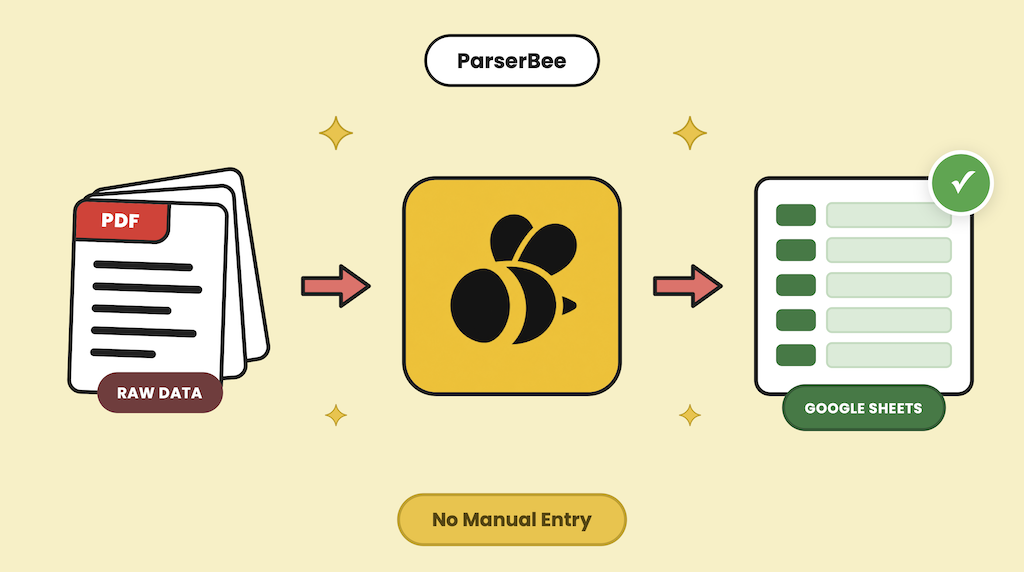
Manual invoice entry is one of the most expensive tasks nobody budgets for. Ardent Partners’ Accounts Payable Metrics That Matter in 2025 puts the average fully loaded cost of processing a single invoice at $10.89, once you account for the time spent opening, reading, keying, and checking it. And studies of manual transcription consistently find error rates between 1% and 4%, which means a business processing 100 invoices a month is quietly writing wrong numbers into its books every single week.
If you extract invoice data to Google Sheets by typing it in yourself, you already know the real cost: it is not just the hours, it is the reconciliation headache when a $1,540 total gets entered as $1,450 and nobody catches it until month-end.
This guide shows you the alternative: upload your invoices to an AI document parser, click one button, and get a clean, formatted Google Sheet. No coding, no developer, and for the core workflow, no third-party automation tools either.
TL;DR: ParserBee reads your invoice PDFs, scans, and photos with AI, extracts the fields you define once (vendor, invoice number, dates, totals, line items), and exports the results directly to Google Sheets with one click through its built-in integration. Setup takes about 15 minutes. After that, a stack of 50 invoices becomes a spreadsheet in the time it takes to make coffee. If you want a fully hands-off pipeline where emailed invoices append themselves to a sheet automatically, you can add Zapier on top; that option is covered at the end.
Why Manual Invoice Entry Costs More Than You Think
Almost every invoice carries the same core fields: vendor name, invoice number, invoice date, due date, line items, subtotal, tax, and total. Copying eight fields sounds trivial. At volume, it is not.
Three failure modes make manual entry more expensive than the raw typing time suggests:
- Transposition errors. Digits swap silently. A transposed total does not look wrong; it just fails to reconcile weeks later, and finding it costs far more than entering it did.
- Skipped invoices. When entry is a manual chore, invoices sit in the inbox until “later.” Late entry means late payments, missed early-payment discounts, and vendor friction.
- Format chaos. Every vendor lays out invoices differently. Your brain re-solves a new visual puzzle on each document, which is exactly the condition under which humans make the most mistakes.
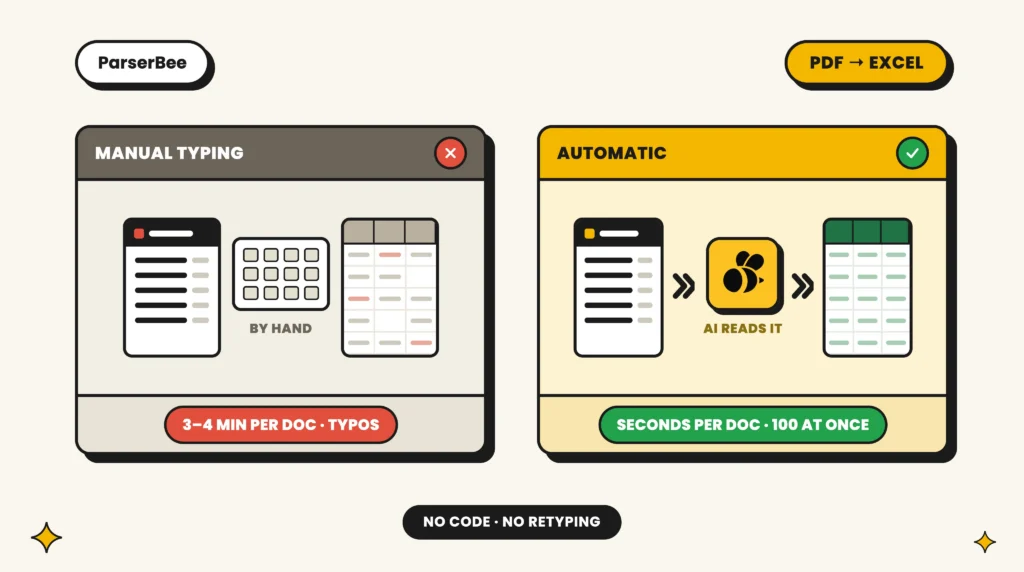
Spreadsheet skills cannot rescue you here. Formulas operate on data that is already in the sheet; your bottleneck is getting data out of the PDF. Copy-paste fails because PDF layouts scramble text order, scanned invoices are just images, and no two vendors put the total in the same place. The extraction step is the problem, and it is the step AI document parsing removes.
How Does Automated Invoice Extraction Work?
The workflow has three parts:
[Invoice PDFs] → [ParserBee reads them] → [Google Sheet, one click]- You define your fields once. In ParserBee, you create a template: a plain-English list of the fields you want from every invoice. This takes ten minutes and you never do it again.
- ParserBee reads the documents. Its AI extracts your fields from any invoice in any layout. PDFs, scans, and phone photos all work, and there is no per-vendor setup.
- You export to Google Sheets. ParserBee connects to your Google account directly. One click creates a formatted spreadsheet in your Drive with every extracted invoice as a row, headers bolded and columns sized, and opens it in a new tab.
No middleware, no webhooks, no “connector” subscriptions. The Google Sheets integration is built into ParserBee.
One privacy note worth knowing, because you are granting access to your Google account: ParserBee uses Google’s most restricted Drive permission (the drive.file scope). That means it can only see and edit spreadsheets it creates itself. It cannot read, list, or touch anything else in your Drive.
Setup time: about 15 minutes. Per-invoice time afterward: zero typing.
How to Extract Invoice Data to Google Sheets: Step by Step
Step 1: Create your ParserBee invoice template
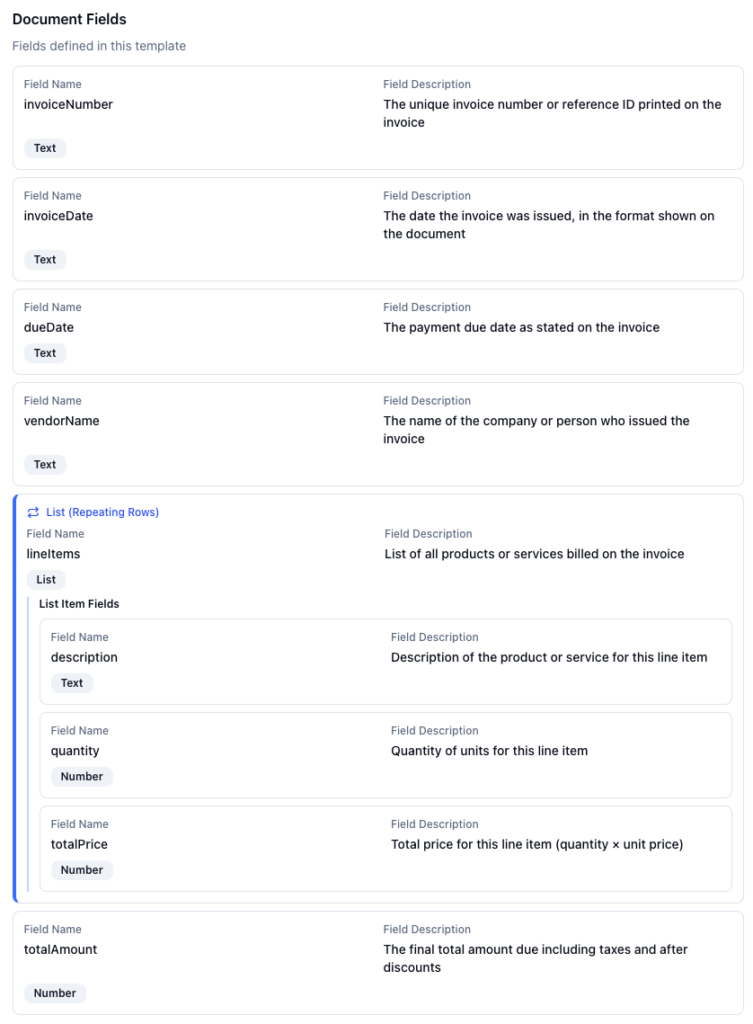
Sign up at parserbee.com and create a template. A template is simply the list of fields you want pulled from every invoice. Start from the ready-made Invoice template in the Template Library, or define your own:
- vendor_name
- invoice_number
- invoice_date
- due_date
- total_amount
- line_items (a list, so multi-line invoices come out as structured rows)
For each field, write a one-line plain-English description of what to look for, such as “The invoice number printed at the top of the document.” Clearer descriptions produce more accurate extractions.
Pro Tip: Dates break more spreadsheets than any other field. Spell the format out in your field description, for example “The invoice date, formatted as DD/MM/YYYY.” ParserBee will normalise every vendor’s date style into that single format, so your sheet stays sortable and your month-end filters actually work.
Step 2: Connect your Google account
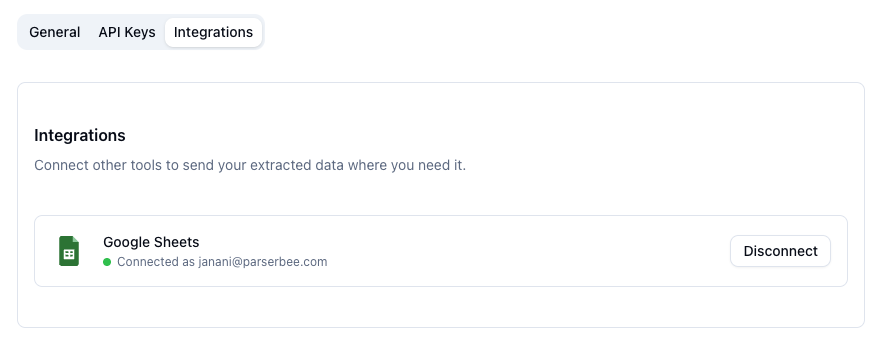
Go to Settings, open the Integrations tab, and click Connect next to Google Sheets. Google asks you to confirm, you click Allow, and you are done. Settings will show which Google account is connected, and you can disconnect at any time.
Step 3: Open Data Lab and upload your invoices
Data Lab is ParserBee’s bulk extraction workspace. Select your invoice template from the dropdown, then drag and drop your invoices into the upload area. You can queue a whole folder at once: PDFs, PNGs, JPEGs, and WebP images, up to 50 MB each.
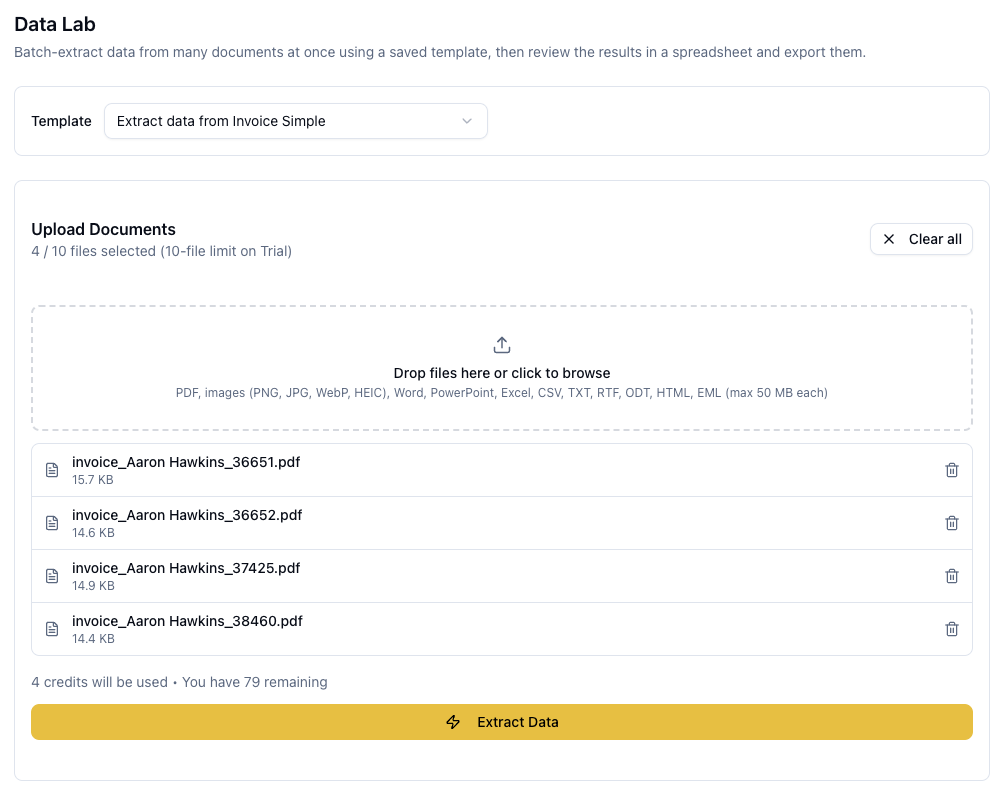
Step 4: Click Extract Data and watch it run
ParserBee processes the queue one document at a time, with a live progress bar and per-file status. As each invoice finishes, its data appears as a new row in the results grid on the same page, so you can watch the spreadsheet build itself in real time.
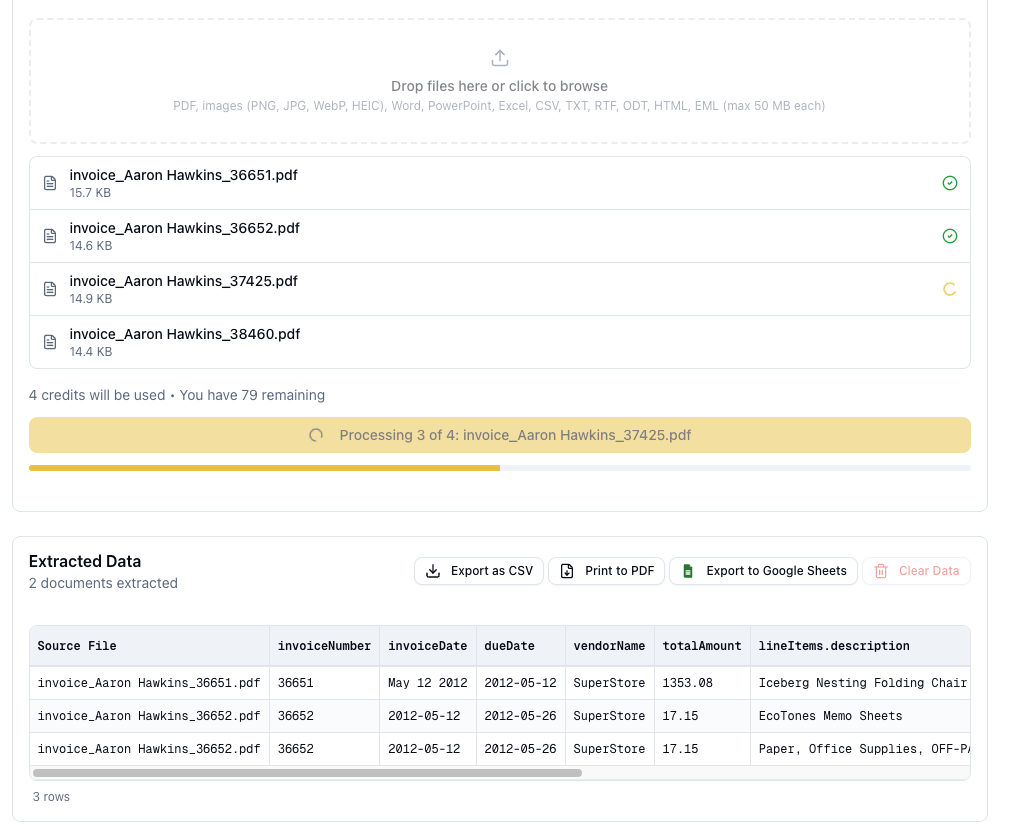
Step 5: Review the results
When the batch completes, you get a summary of successes and failures, and the full results in a scrollable spreadsheet view. Spot-check a few rows against the source documents. If any file failed (a corrupted PDF, an unreadable scan), it is listed with the reason, and the rest of the batch is unaffected.
Step 6: Click Export to Google Sheets
One click. ParserBee creates a new spreadsheet in your Google Drive, writes every row into it, formats the header, sizes the columns, and opens the finished sheet in a new tab. Each export produces a fresh, cleanly formatted file, which works especially well as a per-batch or per-month record: “Invoices March 2026” this month, “Invoices April 2026” the next.
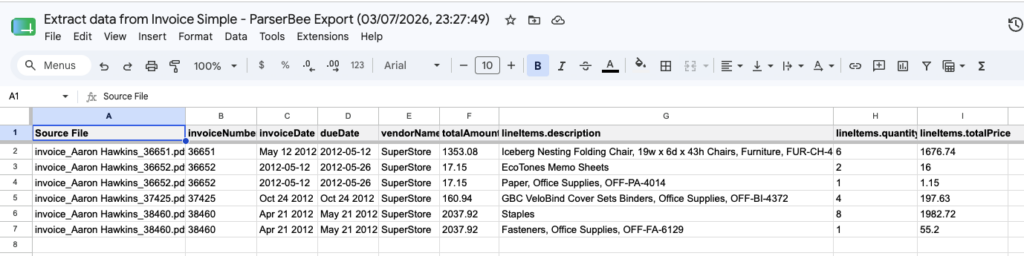
That is the whole workflow. From a folder of 4 invoice PDFs to a formatted Google Sheet: two clicks and a few minutes of processing, none of it yours.
What Automated Extraction Handles That Manual Entry Cannot
Speed is the obvious win, but four capabilities matter more at scale:
Scanned invoices and photographed receipts. A supplier sends a photocopied fax, or a colleague photographs a crumpled receipt. ParserBee reads images the same way it reads clean PDFs, so paper documents flow through the identical pipeline.
Different vendors, different layouts, one template. Your electricity company prints the total top-right; your web host buries it under three subscription lines. ParserBee extracts based on what a field means, not where one vendor happens to print it, so a single template covers every vendor, including ones you have never billed with before.
Line items as structured data. An invoice with 12 line items is 12 chances to mistype a quantity. Because line_items is defined as a list, every line comes out as its own structured entry with description, quantity, unit price, and amount.
Multi-language invoices. A supplier invoicing in German or Spanish is handled identically. The output fields carry the names you defined, whatever language the source document uses.
What the Output Actually Looks Like
Concrete example. This invoice is in your batch: Meridian Office Supplies, invoice #INV-2024-0847, dated 12/03/2026, due 11/04/2026, two line items, $486.00 total.
ParserBee extracts this structured data:
{
  "vendor_name": "Meridian Office Supplies",
  "invoice_number": "INV-2024-0847",
  "invoice_date": "12/03/2026",
  "due_date": "11/04/2026",
  "subtotal": 450.00,
  "tax": 36.00,
  "total_amount": 486.00,
  "line_items": [
    { "description": "A4 Paper (10 reams)", "quantity": 2, "unit_price": 45.00, "amount": 90.00 },
    { "description": "Standing desk converter", "quantity": 1, "unit_price": 360.00, "amount": 360.00 }
  ]
}
And the row that lands in your exported Google Sheet:
| Vendor | Invoice # | Date | Due Date | Subtotal | Tax | Total |
|---|---|---|---|---|---|---|
| Meridian Office Supplies | INV-2024-0847 | 12/03/2026 | 11/04/2026 | 450.00 | 36.00 | 486.00 |
Multiply that row by every invoice in the batch and you have the full picture of what you are building.
Want It Fully Hands-Off? Add Zapier for Email Automation
The Data Lab workflow above is batch-based: you upload, it extracts, you export. For most finance teams, running it weekly or monthly is the entire job.
If you want invoices to flow into a sheet with no upload step at all, ParserBee also has a REST API that works with Zapier or Make: a Gmail or Google Drive trigger sends each new invoice attachment to ParserBee automatically, and the extracted fields append to an existing Google Sheet as they arrive. It takes about 20 extra minutes to configure and does involve copying your ParserBee API key into a Zapier webhook step, so we cover it separately on “How to Auto-Parse Emailed Invoices with ParserBee and Zapier”
A simple rule of thumb: invoices arriving in batches (a folder at month-end), use Data Lab. Invoices trickling in one by one via email and needing to appear in the sheet the moment they land, add Zapier.
Where the Data Goes Next: Accounting Tools
Once invoice data is in Google Sheets, it can flow onward into Xero, QuickBooks, or FreshBooks as draft bills, turning the sheet into a staging area for your entire payables process.
Frequently Asked Questions
What if my invoices are photos, not PDFs?
They work identically. ParserBee accepts PDFs, PNGs, JPEGs, and WebP images, including phone photos of paper invoices. If a person could read it, the parser can.
What if invoices come from different vendors and look different every time?
That is the core problem AI extraction solves. You define fields once; the parser locates them in any layout. There is no per-vendor template, and a brand-new vendor’s first invoice works with zero extra setup.
Do I need a developer to set this up?
No. The template builder is a visual form, connecting Google Sheets is a two-click OAuth approval, and Data Lab is drag-and-drop. Nothing in the core workflow involves code, APIs, or third-party tools. Only the optional Zapier email automation touches an API key, and even that is copy-paste.
How much does it cost?
ParserBee’s free trial includes 25 document extractions. Paid plans start at $49/month for 100 documents. Against a manual processing cost of roughly $10 per 3- 5 invoices, the automation pays for itself inside the first stack of invoices.
Automate Invoice Data Entry This Week
Manual invoice entry costs real money, introduces errors at a measurable rate, and scales linearly with your business: more growth, more typing. The automated alternative costs 15 minutes once.
Create the template, connect your Google account, upload a test batch, and click export. From that point, you extract invoice data to Google Sheets in two clicks per batch, and the error rate on those fields drops to what the parser was built to deliver rather than what a tired human can manage.
Start your free ParserBee trial: 25 documents free, a ready-made invoice template in the library, and Google Sheets export built in.
Table of Contents
How to Stop Manual Data Entry from PDF to Excel (For Non-Technical Teams)
data extraction, Excel, No Code, PDF extraction
The Best Invoice Automation Software for Small Businesses in 2026
data extraction, Invoices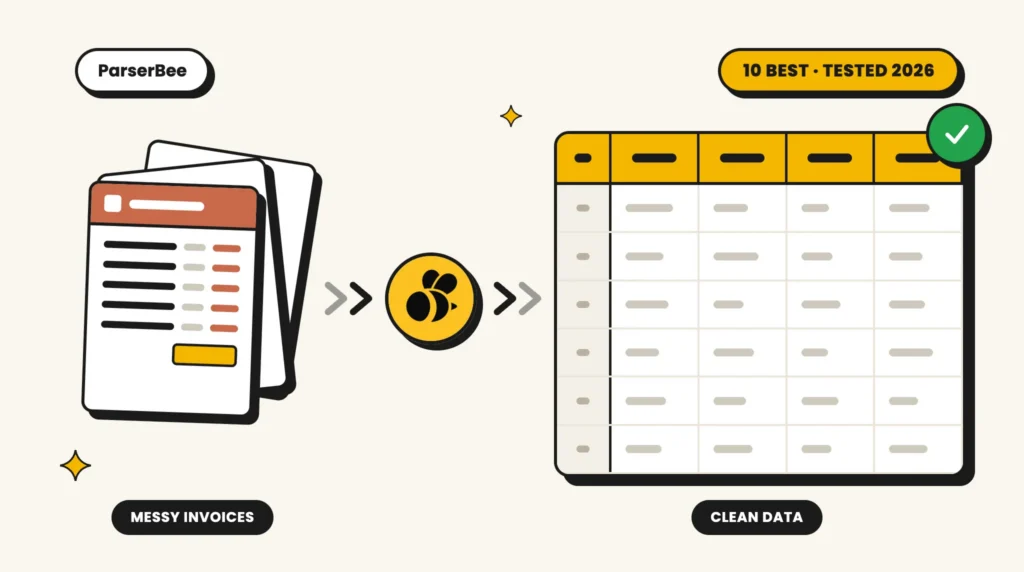
10 Best Invoice OCR Software in 2026 (Tested on Real Invoices)
Comparisons, data extraction, Invoices, No Code