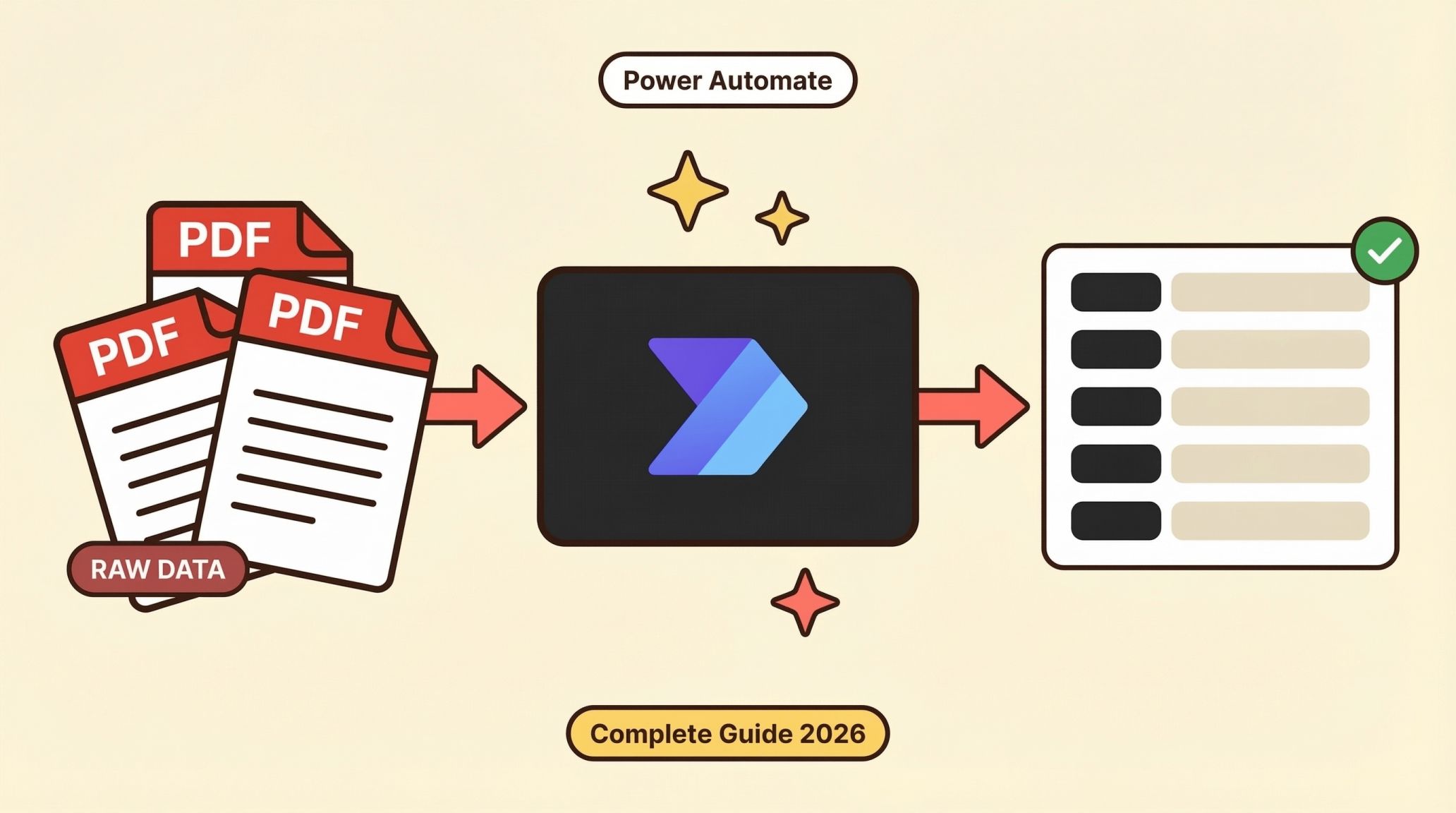
Need to extract text from a PDF in Power Automate? You’re not alone. It’s one of the most searched automation tasks, and for good reason. Whether you’re processing invoices, parsing resumes, or pulling data from contracts, getting text out of PDFs is the backbone of document automation.
In this guide, we’ll cover everything from the built-in Power Automate actions to handling the tricky cases (scanned PDFs, images, messy layouts) where native tools fall short. We’ll also show you how to plug in AI-powered extraction using ParserBee’s API to get clean, structured JSON data — all without writing a single line of code.
What Does “Extract Text from PDF” Mean in Power Automate?
When people say they want to extract text from a PDF in Power Automate, they usually mean one of these things:
- Get all the raw text from a digital PDF (text you can select and copy)
- Read text from a scanned PDF or image-based document using OCR
- Extract specific data fields like names, dates, amounts, or addresses from a document
- Pull structured data (like table rows or form fields) into a usable format
Power Automate offers different tools for each of these scenarios. The right approach depends on what kind of PDF you’re working with and what you want to do with the extracted data.
Method 1: Using the Built-in “Extract Text from PDF” Action
Power Automate Desktop includes a native “Extract text from PDF” action. Here’s how to use it:
Steps:
- Open Power Automate Desktop and create a new flow
- Add the “Extract text from PDF” action
- Set the PDF file path (from a local folder, SharePoint, OneDrive, etc.)
- Choose the page range (all pages or specific pages)
- Run the flow – the extracted text is stored in a variable
What It Does Well:
- ✅ Works great for digitally created PDFs (from Word, Excel, Google Docs, etc.)
- ✅ Fast and free. No premium connectors needed
- ✅ Simple to set up for basic text extraction
What It Doesn’t Do:
- ❌ Cannot read scanned PDFs or image-based documents
- ❌ Returns raw unstructured text. No field-level data extraction
- ❌ No support for extracting data from images (PNG, JPEG, WebP)
- ❌ Struggles with complex layouts, multi-column PDFs, and tables
Bottom line: If your PDFs are digitally generated and you just need the raw text, this built-in action works fine. But if you need structured data or have scanned documents, keep reading.
Method 2: Using AI Builder for Scanned PDFs and Images
For scanned PDFs and image-based documents, Power Automate offers AI Builder — Microsoft’s AI add-on that includes OCR (Optical Character Recognition).
Steps:
- In your cloud flow, add the “Recognize text in an image or PDF document” action (AI Builder)
- Provide the file content from your trigger (e.g., “When a file is created in SharePoint”)
- AI Builder uses OCR to read the text
- Access the extracted text in subsequent actions
What It Does Well:
- ✅ Can read text from scanned PDFs and images
- ✅ Integrates directly into cloud flows
What It Doesn’t Do:
- ❌ Requires a premium license (AI Builder credits)
- ❌ Returns raw OCR text. Still no structured data extraction
- ❌ Accuracy varies significantly based on document quality
- ❌ Slow processing. Large PDFs can take minutes or even hours
- ❌ Has file size and page count limits
- ❌ Different OCR engines produce inconsistent results
- ❌ Cannot extract data from forms or extract specific fields
The Problem: Why Native PDF Extraction Often Falls Short
Here’s the reality that most Power Automate users run into – and it’s the reason you’re probably reading this article:
1. Raw Text ≠ Usable Data
The built-in actions give you a giant block of text. If you’re extracting an invoice, you get something like:
Invoice #12345
Date: March 10, 2026
Bill To: Acme Corp
123 Main Street
Item: Consulting Services
Amount: $5,000.00
Tax: $500.00
Total: $5,500.00
Now you need to write complex regex patterns or use multiple string functions to pull out the invoice number, date, amount, etc. This is fragile, breaks when layouts change, and is not scalable.
2. Scanned Documents Are a Nightmare
Roughly 30–40% of business documents are scanned PDFs or images. The native “Extract text from PDF” action simply returns nothing for these documents. AI Builder helps, but adds cost, complexity, and inconsistent accuracy.
3. No Support for Images
Need to extract text from an image (PNG, JPEG) in Power Automate? The built-in PDF action doesn’t work at all. You need AI Builder or a third-party connector, which means premium costs.
4. Complex Layouts Break Everything
Multi-column PDFs, tables, forms with checkboxes, documents with headers and footers – these common formats produce garbled output with native extraction.
5. No Template-Based Extraction
What if you process the same type of document every day (invoices, purchase orders, applications)? You’d want to define once what fields to extract and have it work automatically. Native Power Automate has no built-in way to do this.
This is exactly the gap that ParserBee fills – and it works right inside your Power Automate flows.
Method 3: Using ParserBee API in Power Automate (Recommended)
ParserBee is an AI-powered document parsing platform that extracts structured data from any document – PDFs, scanned documents, and images (PNG, JPEG, WebP) – and returns clean JSON output.
The best part? You can call ParserBee’s API directly from Power Automate using the HTTP connector. No coding required.
How It Works:
- Create a template on ParserBee – define the exact fields you want to extract (e.g., invoice_number, date, total_amount, line_items)
- Get your API key from the ParserBee dashboard
- Add an HTTP action in Power Automate to call ParserBee’s extraction API
- Get structured JSON back – ready to use in your flow
What Makes ParserBee Different:
| Feature | Native Power Automate | AI Builder | ParserBee API |
|---|---|---|---|
| Digital PDFs | ✅ | ✅ | ✅ |
| Scanned PDFs | ❌ | ✅ (with limits) | ✅ |
| Images (PNG, JPEG, WebP) | ❌ | ✅ (with limits) | ✅ |
| Structured JSON output | ❌ | ❌ | ✅ |
| Custom extraction templates | ❌ | Limited | ✅ |
| Multi-record extraction | ❌ | ❌ | ✅ |
| Nested/complex fields | ❌ | ❌ | ✅ |
| Works in Power Automate | ✅ Native | ✅ Native | ✅ Via HTTP connector |
| No-code setup | ✅ | ✅ | ✅ |
| Pricing | Free | Premium (AI Builder credits) | Free tier available |
Step-by-Step: Set Up ParserBee in Power Automate
Here’s exactly how to set up AI-powered document extraction in your Power Automate flow using ParserBee. No coding required.
Step 1: Create Your ParserBee Account and Template
- Go to app.parserbee.com and create a free account
- Navigate to Dashboard → Create Template
- Give your template a name (e.g., “Invoice Extraction”)
- Add the fields you want to extract. For an invoice, you might add:
invoice_number(string)date(string)vendor_name(string)total_amount(number)line_items(array of objects withdescription,quantity,unit_price)
- Click Create Template and note down the Template ID
Step 2: Get Your API Key
- In the ParserBee dashboard, go to Settings → API Keys
- Copy your API key – you’ll need this for the Power Automate flow
Step 3: Build Your Power Automate Flow
Here’s the flow structure:
3a. Set Up Your Trigger
Choose a trigger based on your use case:
- “When a file is created (SharePoint)” – for documents uploaded to SharePoint
- “When a new email arrives (Outlook)” – for email attachments
- “Manually trigger a flow” – for testing
3b. Add the HTTP Action to Call ParserBee
- Add a new action → Search for “HTTP” → Select “HTTP” (premium connector)
- Configure it as follows:
Method: POST
URI: https://app.parserbee.com/api/v1/extract
Headers:
| Key | Value |
|---|---|
x-api-key | your-parserbee-api-key |
Body (using file_url):
If your file is accessible via a URL (e.g., SharePoint link):
{
  "template_id": "your-template-id",
  "file_url": "@{triggerOutputs()?['body/MediaUrl']}"
}
Body (using file upload):
If you want to upload the file directly, change the content type to multipart/form-data and include:
template_id: Your template IDfile: The file content from your trigger
3c. Parse the JSON Response
- Add a “Parse JSON” action after the HTTP step
- Use this schema:
{
  "type": "object",
  "properties": {
    "success": { "type": "boolean" },
    "request_id": { "type": "string" },
    "data": { "type": "object" },
    "credits_remaining": { "type": "integer" },
    "processing_time_ms": { "type": "integer" },
    "usage": {
      "type": "object",
      "properties": {
        "pages_processed": { "type": "integer" },
        "doc_size_bytes": { "type": "integer" }
      }
    }
  }
}
3d. Use the Extracted Data
Now you can use the extracted fields anywhere in your flow:
- Save to Excel or SharePoint – Map each field to a column
- Send an email notification – Include the extracted data in the email body
- Create a record in Dynamics 365 or Dataverse – Populate fields automatically
- Post to Microsoft Teams – Notify your team with the extracted information
- Update a database – Write data to SQL Server or any connected system
Use Case Examples
📄 Invoice Processing
Trigger: A new invoice PDF is uploaded to SharePoint
ParserBee Template Fields:
invoice_number(string)vendor_name(string)invoice_date(string)due_date(string)subtotal(number)tax(number)total_amount(number)line_items(array) – withdescription,quantity,unit_price
What You Get Back:
{
  "success": true,
  "data": {
    "invoice_number": "INV-2026-0342",
    "vendor_name": "CloudTech Solutions",
    "invoice_date": "2026-03-10",
    "due_date": "2026-04-10",
    "subtotal": 4500.00,
    "tax": 450.00,
    "total_amount": 4950.00,
    "line_items": [
      {
        "description": "Cloud Hosting (March 2026)",
        "quantity": 1,
        "unit_price": 3000.00
      },
      {
        "description": "Technical Support Package",
        "quantity": 1,
        "unit_price": 1500.00
      }
    ]
  },
  "credits_remaining": 487,
  "processing_time_ms": 2340
}
Next Steps in Flow: Add a row to an Excel table, send approval email, create a payment entry.
📋 Resume/CV Parsing
Trigger: A candidate uploads their resume via Microsoft Forms
ParserBee Template Fields:
name(string)email(string)phone(string)education(array) – withinstitution,degree,major,yearwork_experience(array) – withcompany,role,duration,descriptionskills(array of strings)
What You Get Back:
{
  "success": true,
  "data": {
    "name": "Sarah Johnson",
    "email": "[email protected]",
    "phone": "(555) 123-4567",
    "education": [
      {
        "institution": "MIT",
        "degree": "B.S.",
        "major": "Computer Science",
        "year": "2022"
      }
    ],
    "work_experience": [
      {
        "company": "Google",
        "role": "Software Engineer",
        "duration": "2022 - Present",
        "description": "Full-stack development on Cloud Platform"
      }
    ],
    "skills": ["Python", "React", "AWS", "SQL", "Docker"]
  }
}
Next Steps in Flow: Create a record in your ATS, send to hiring manager, add to SharePoint list.
🧾 Receipt and Expense Extraction
Trigger: An employee forwards a receipt image via email
ParserBee Template Fields:
merchant_name(string)date(string)total(number)payment_method(string)items(array) – withname,price
This works even with:
- 📱 Photos of receipts (JPEG, PNG)
- 📑 Scanned PDFs of receipts
- 🌐 WebP images
📝 Contract and Agreement Parsing
Trigger: A new contract is uploaded to a SharePoint folder
ParserBee Template Fields:
parties(array of strings)effective_date(string)expiration_date(string)contract_value(number)key_terms(array of strings)renewal_clause(string)
ParserBee vs Native Power Automate PDF Extraction
Here’s a side-by-side comparison to help you decide:
When to Use the Native “Extract Text from PDF” Action:
- ✅ Your PDFs are always digitally generated (never scanned)
- ✅ You only need the raw text as a block of unformatted content
- ✅ You have a simple, consistent document layout
- ✅ You are comfortable writing regex or string operations to parse the output
When to Use ParserBee API:
- ✅ You need structured JSON data – not raw text
- ✅ You process scanned PDFs or image-based documents
- ✅ You want to extract data from images (PNG, JPEG, WebP)
- ✅ You need to handle complex layouts, tables, or multi-page documents
- ✅ You want a template-based approach – define fields once, extract automatically
- ✅ You need nested data structures (e.g., line items on an invoice)
- ✅ You want to process the same document type repeatedly with consistent results
- ✅ You want a no-code solution that doesn’t require regex or string manipulation
Supported File Types
ParserBee supports all the common document formats you’ll encounter:
| Format | Extension | Use Case |
|---|---|---|
.pdf | Invoices, contracts, reports, resumes | |
| PNG | .png | Screenshots, scanned documents, captured images |
| JPEG | .jpg, .jpeg | Photos of receipts, ID cards, documents |
| WebP | .webp | Web-optimized document images |
Maximum file size: 50 MB
Frequently Asked Questions
Can I use Power Automate to extract text from a scanned PDF?
Yes, but not with the built-in “Extract text from PDF” action – that only works for digitally created PDFs with selectable text. For scanned PDFs, you have two options:
- AI Builder – Microsoft’s OCR add-on (requires premium license, returns raw text only)
- ParserBee API – AI-powered extraction via the HTTP connector (returns structured JSON data, free tier available)
Can Power Automate extract text from images?
The built-in PDF actions don’t support images. You can use AI Builder’s “Recognize text in an image” action (premium), or call the ParserBee API which supports PNG, JPEG, and WebP images natively.
How do I extract specific fields (like invoice number or date) from a PDF in Power Automate?
The native actions only return raw text – you’d need to write string functions or regex to parse individual fields. With ParserBee, you define the exact fields you want in a template, and the API returns them as a structured JSON object. No string parsing needed.
Is ParserBee free to use?
ParserBee offers a free tier with credits to get started. You can create templates, generate an API key, and start extracting data immediately. Paid plans are available for higher volume usage.
Does ParserBee work with Power Automate Cloud (not Desktop)?
Yes! ParserBee’s API works with both Power Automate Cloud and Power Automate Desktop. In Cloud flows, use the HTTP connector. In Desktop flows, use the “Invoke web service” action.
What happens if the PDF has tables?
ParserBee handles tables natively. You can define array-type fields in your template (e.g., line_items as an array of objects), and ParserBee will extract each row as a structured object with the fields you specified.
Can I extract data from multiple documents of the same type?
Absolutely – that’s exactly what templates are designed for. Create a template once for your document type (invoices, receipts, etc.), and use the same template ID in every API call. ParserBee’s AI adapts to variations in layout while extracting the same fields consistently.
Is the HTTP connector in Power Automate a premium connector?
Yes, the HTTP connector requires a Power Automate Premium license. However, if you’re processing PDFs at any meaningful scale, you likely already have a premium plan. The investment is worth it for the structured data output you get from ParserBee compared to raw text.
Can I use ParserBee to extract data from documents in languages other than English?
Yes, ParserBee’s AI engine supports multiple languages. The OCR and extraction capabilities work across different languages and character sets.
How fast is ParserBee’s extraction?
Most documents are processed in 2–5 seconds. This is significantly faster than AI Builder, which can take minutes for complex or multi-page documents.
Conclusion
Extracting text from PDFs in Power Automate doesn’t have to be painful. Here’s the simple decision tree:
- Digital PDFs + raw text only? → Use the built-in “Extract text from PDF” action
- Scanned PDFs or images? → You need OCR – either AI Builder (premium, raw text) or ParserBee (structured data)
- Need structured data (specific fields)? → Use ParserBee API via the HTTP connector – it’s the only option that gives you clean JSON without writing regex
ParserBee works inside your existing Power Automate flows. There’s nothing to migrate, no workflows to rebuild. Just add one HTTP action, point it at ParserBee’s API, and you’ll go from raw blobs of text to structured, usable data in seconds.
Get started with ParserBee for free →
Have questions about using ParserBee with Power Automate? Reach out to us at [email protected] – we’re happy to help you set up your first flow.